Conversation AI: Live Chat Channel in Workflow Action
Introducing Live Chat as a Workflow Action Channel
You can now include live chat as a channel option when setting up a conversation AI bot within a workflow. This enhancement allows your automated sequences to initiate real-time, human-like chat interactions directly with contacts, bridging the gap between automation and personal engagement.
How to Add a Live Chat Action to a Workflow
To use this feature, you need to edit or create a workflow and add a conversation AI bot action.
- Navigate to the Workflows section of your CRM and open the workflow you wish to edit.
- Add a new action or edit an existing one, and select the option to add a Conversation AI Bot.
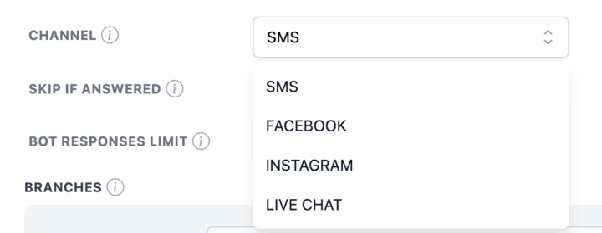
- In the action configuration, you will see an option to choose the channel for the conversation. Select Live Chat from the available channels.
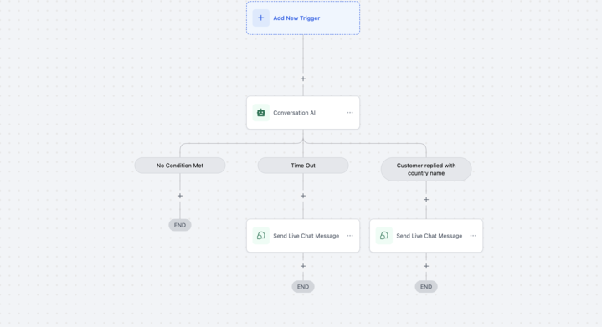
- After selecting Live Chat, configure the specific message or prompt that the AI bot will use to start the conversation with the contact.
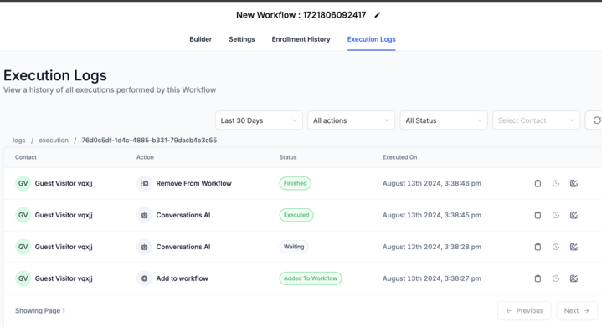
- Save the action and activate your workflow. When a contact triggers this workflow step, they will receive a live chat message from the AI bot, creating an interactive experience.
Expected Outcome
Once configured, contacts entering this workflow step will see a live chat window appear (if embedded on your site) or receive a chat message through your CRM's chat interface. The AI bot will engage them based on your settings, allowing for dynamic, automated conversations that feel personal and immediate.