Adding Unassigned Calendars to Groups
Adding Unassigned Calendars to Groups
You can now organize both Unassigned Calendars and Round-robin Calendars into groups. This helps streamline calendar management and assignment within your CRM.
Steps to Assign a Calendar to a Group
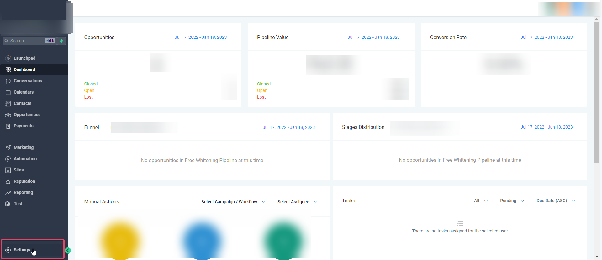
To begin, go to your CRM's Settings and select the Calendars section.
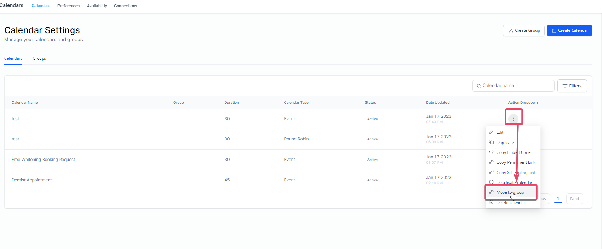
Locate the calendar you wish to assign to a group. Click the options menu (typically represented by three dots) next to that calendar, then choose the "Move to Group" action.
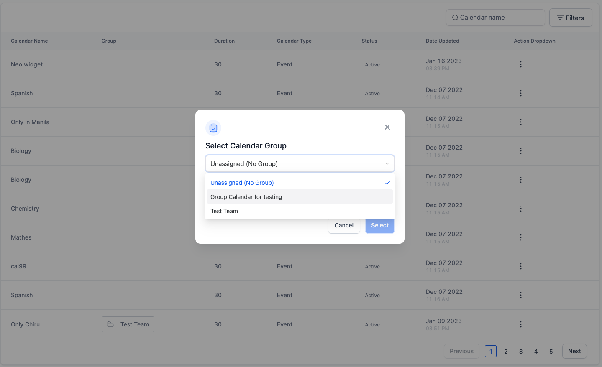
A dialog will appear, allowing you to pick an existing group or create a new one. After selecting the desired group, confirm your choice to complete the assignment.
Once assigned, the calendar will be grouped accordingly, making it easier to manage and distribute within your team’s workflow.