How to Use Service Calendars in the Mobile App
What You Can Do with Service Calendars
With the latest mobile app update, you can now access and manage your service calendars on the go. This includes:
- Viewing all scheduled service appointments
- Creating new service appointments directly from your mobile device
How to Use Service Calendars in the Mobile App
Follow these steps to view and schedule service appointments:
- Open the CRM mobile app and make sure you're logged into the correct sub-account.
- Navigate to the Calendars section from the main menu.

- Tap the "+" button and select "Schedule Appointment" to create a new service appointment.
- Choose the appropriate service calendar from the dropdown menu (these are the calendars you've previously set up in the web version).
- Select the room where the service will take place. The system will automatically assign available equipment based on your selection.
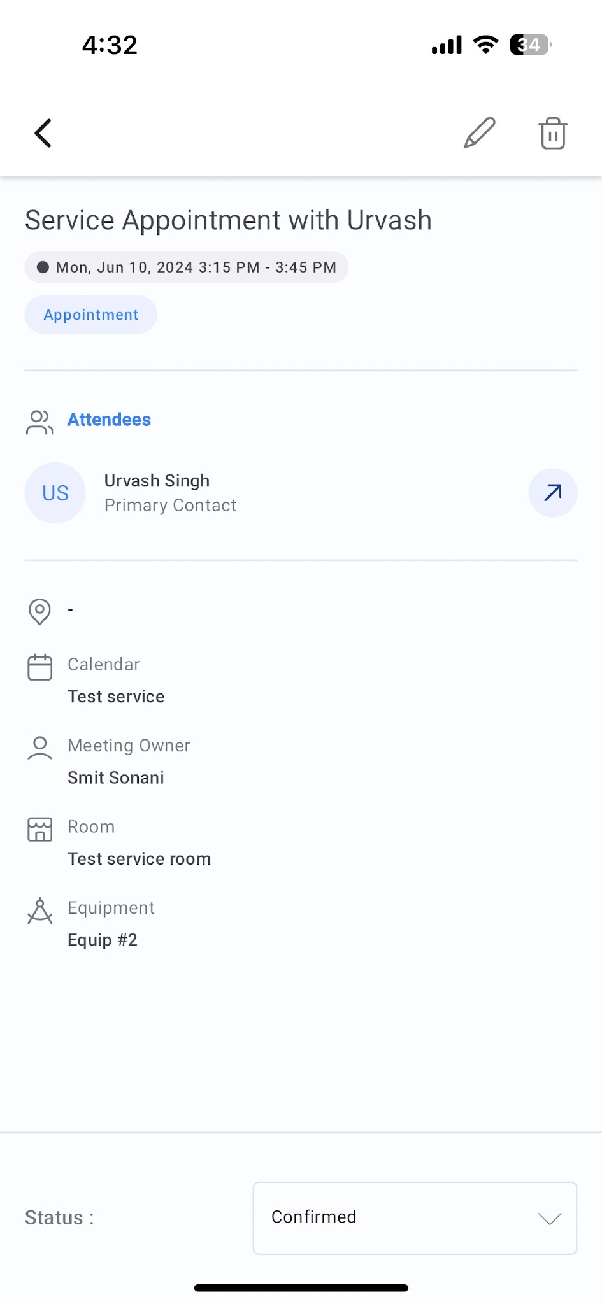
- Complete all required appointment details (such as client information, service type, and timing) and tap "Save" to confirm the appointment.
Why This Matters
This feature enables you to manage your service appointments directly from your mobile device, giving you flexibility and real-time control over your schedule whether you're in the office or on the go.
Availability
- CRM for iOS - version 3.74 or later
- CRM for Android - version 3.74 or later