Conversations: Group Chat for SMS
Group Chat for SMS
Group Chat for SMS allows you to send text messages to multiple contacts in a single conversation. This is perfect for businesses that need to coordinate with several people at once—like a sales team updating clients or a project manager keeping stakeholders informed.
What You Need
Before creating a group chat, make sure you have:
- A phone number in your CRM that supports SMS
- All phone numbers must be from the US or Canada
How to Create a Group Chat
Follow these steps to set up and use group messaging:
-
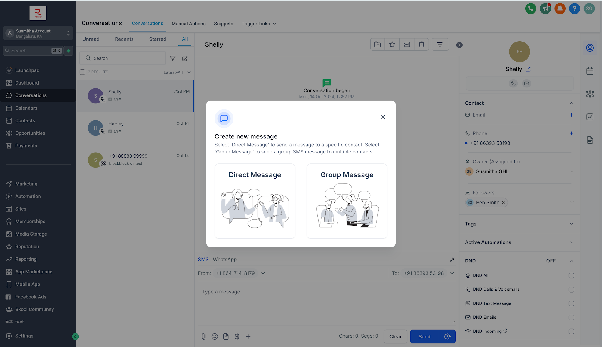
Navigate to the Conversations area in your CRM. Click to start a new message and select the option for Group Message.
-
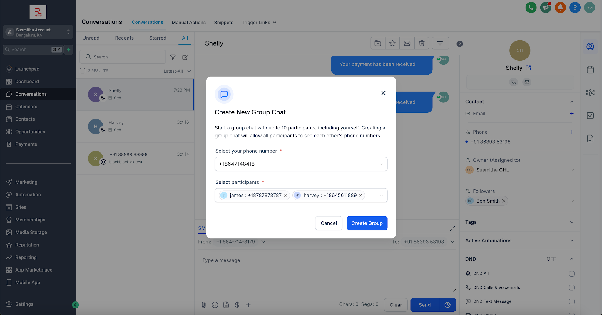
Select the phone number you want to send from. It must be a valid US or Canada number associated with your CRM account.
-
Choose the contacts you want to include. You need at least 2 and can add up to 9 participants. Both primary and secondary numbers can be used. Note: You can’t add contacts with Do Not Disturb (DND) enabled or non-US/Canada numbers.
-
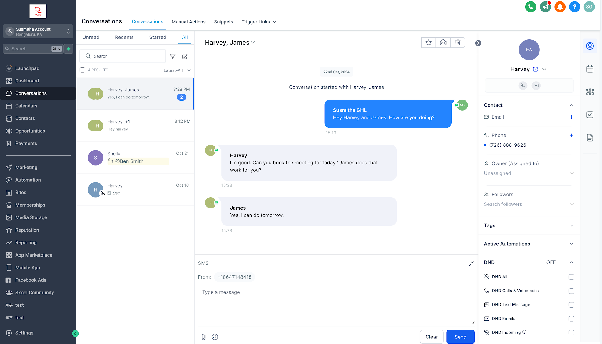
Type your message and click Send. Everyone in the group will receive it, and replies from any member will be visible to the whole group.
-
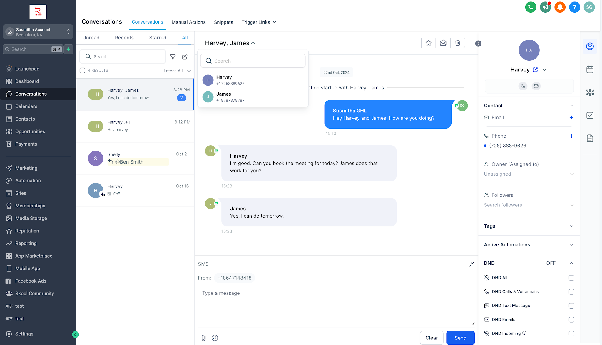
View all participants in the group from the top panel. You can search for members by name or phone number.
-
Click the chevron next to a contact’s name in the right panel to see a full list of group members.
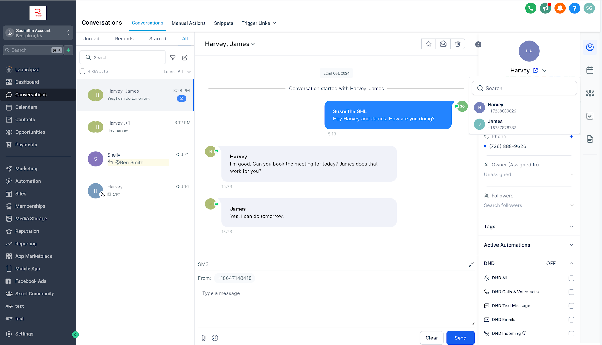
-
Once the group is created, messages will always go to the numbers originally added—even if a contact is later deleted or their number is changed. Tags like “Updated” or “Deleted” will appear next to affected names.
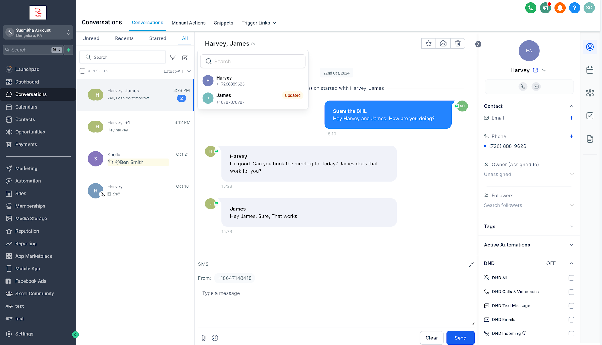
Access and Permissions
- Users with restricted data access can only create or view groups containing their assigned contacts.
- To send messages in a group, a user must have access to the phone number used to create it. Admins can use all location numbers, while standard users can use default, assigned, or unassigned numbers.
Important Notes
- After creating a group, you can’t change the participants or the business phone number.
- If a contact is deleted or their number is updated, messages still go to the originally added number.
- If a group member enables DND after the group is created, the chat becomes unusable. You’ll need to create a new group without that person.