How to Import Email template(s) from Mailchimp
How to Import an Email Template from Mailchimp
You can easily bring your existing email templates from Mailchimp into your CRM. The imported template will be created as an HTML code-based template within the system. This is useful if you want to continue using a design you've already built in Mailchimp.
Prerequisites
Before you begin, make sure you have the following:
- A live, published email campaign or a saved template in your Mailchimp account.
- The direct URL to the public view of that campaign or template.
Step 1: Get the Mailchimp Template or Campaign URL
First, you need to get the public link to your Mailchimp content.
- For a Published Campaign: Log into your Mailchimp account, go to your list of campaigns, and open the one you want to import. Use the option to "View" or "Preview" the email in a web browser, then copy the full URL from your browser's address bar.
- For a Saved Template: If you want to import a template that hasn't been used in a campaign yet, you'll need to create a new campaign using that template, send a test email to yourself, and then copy the public viewing URL from that test email.
Step 2: Start the Import Process in Your CRM
Navigate to the email templates section within your CRM.
- Go to the Emails section in your main navigation.
- Click on Email Templates.
- Click the button to Create New Template.
- From the creation options, select Import Template.
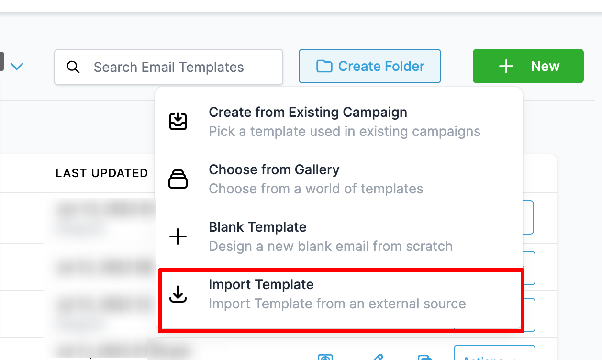
Step 3: Paste the URL and Create the Template
You will see a field to paste the Mailchimp URL.
- Paste the Mailchimp campaign or template URL you copied earlier into the provided field.
- The system will show a preview of the email content. Review it to ensure it looks correct.
- Click the Create Template button to finalize the import.
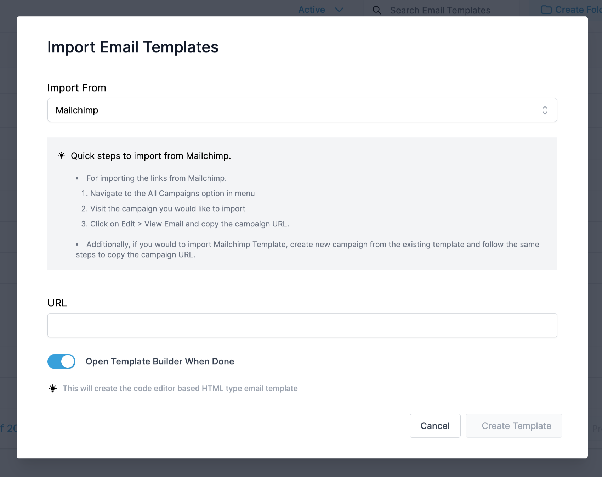
After clicking the button, the system will process the HTML and create a new template. You will then be prompted to give the template a name before it is saved to your template library.
Frequently Asked Questions
Will the imported template be a drag-and-drop template?
No. Templates imported via this method are created as HTML code templates. This feature is provided as a convenient way to migrate designs, and we welcome user feedback on its functionality.
What will the imported template be named?
After you click "Create Template," the system will prompt you to enter a name for your new template before saving it.