How to Reschedule an Email Campaign (Email Builder)
Rescheduling an Email Campaign
If you have an upcoming email campaign that is scheduled using the Simple, Batch, or RSS scheduling methods, you can adjust its delivery time up to 60 minutes before it is set to be sent. This allows you to make last-minute changes to the schedule if needed.
To get started, you'll need to go to the email campaigns section of your CRM.
Steps to Change the Schedule
First, navigate to the Marketing area and select Email Campaigns. You will see a list of your scheduled campaigns, including those set up with Simple, Batch, and RSS scheduling.
Locate the campaign you wish to reschedule. Next to its entry, you will find an action menu (often represented by a button or a "kebab" icon with three dots). Click this menu and choose the option to Reschedule Campaign.
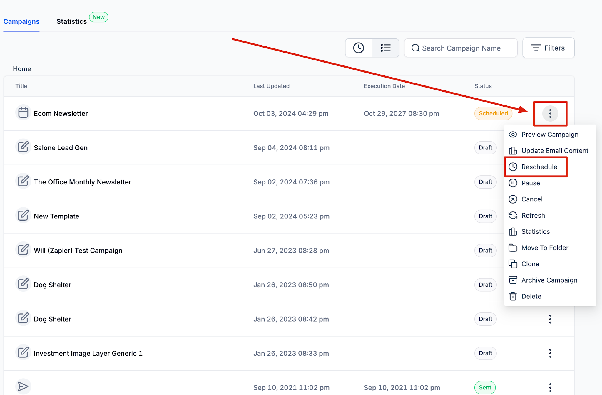
This action will open a window or a form where you can modify the campaign's scheduling details. You can change the date and time of delivery, and you may also have the option to change the delivery model (for example, from a batch schedule to a simple schedule). After making your adjustments, ensure you confirm the action by selecting the option to save the campaign as rescheduled.
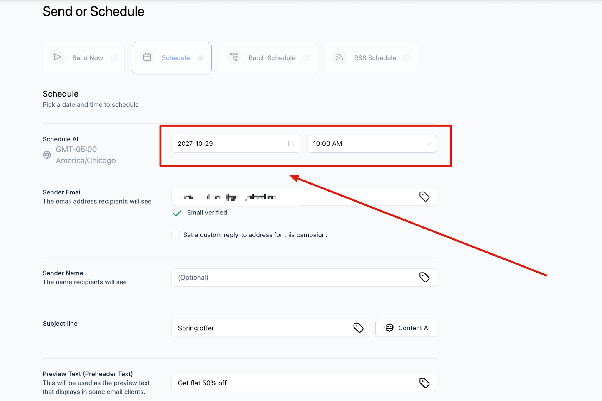
Once you save the changes, the campaign will be updated with its new schedule. You can verify the new send time by checking the campaign's status in the list.