How to Resubscribe After Unsubscribing from an Email List
How to Resubscribe After Unsubscribing from an Email List
If you’ve previously unsubscribed from an email list but would like to start receiving messages again, you can resubscribe directly through your CRM. This process ensures you regain access to updates, newsletters, and other communications.
Before you begin:
- You’ll need access to the email address that was originally unsubscribed.
- Resubscribing typically requires confirmation to comply with email marketing best practices.
Step 1: Locate the Contact
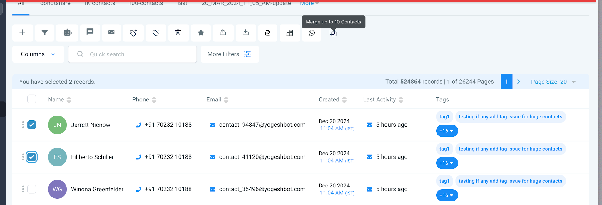
Navigate to the Contacts section in your CRM and find the contact record for the person who unsubscribed. You can search by name, email, or phone number.
Step 2: Edit the Contact’s Email Status
Open the contact’s profile and look for the email subscription status field. This is usually found in the communication or details section. Change the status from “Unsubscribed” to “Subscribed.”
Step 3: Confirm the Resubscription
After updating the status, save the contact record. The contact will now be resubscribed to your email lists. In some cases, the system may send a confirmation email to the contact to reaffirm their subscription.
Step 4: Verify in Email Lists
Check your email list or campaign settings to ensure the contact appears as an active subscriber. They should now receive future email broadcasts.
Note: Resubscribing a contact manually should be done in accordance with applicable email regulations. Always ensure the contact has given explicit permission to receive emails again.