Workflow Action based on Email Event Clicked/Opened
Triggering a Workflow Based on Email Clicks or Opens
You can configure your CRM workflows to start automatically when a contact clicks a link in an email or opens an email. This allows you to create highly responsive automations based on recipient engagement. This guide shows you how to set up this type of trigger.
Prerequisites
Before you begin, ensure you have a workflow created or open for editing in your CRM.
Adding the Email Event Trigger
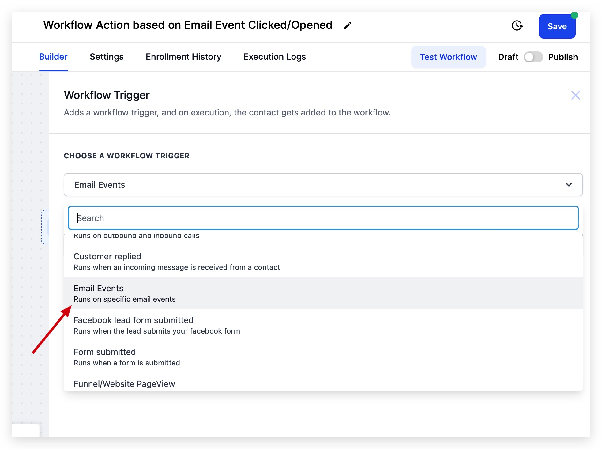
- Within your workflow editor, locate the area to add a new trigger. Start by searching for "email" to see a list of related trigger options.

- From the list of search results, select the option labeled "Email Events."
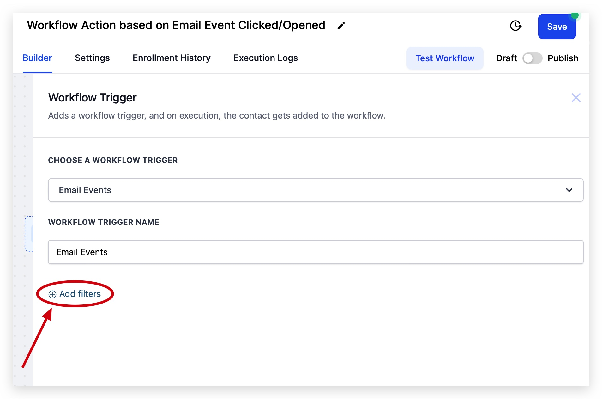
- The trigger will be added. To specify which email action you want to track, you need to add a filter. Click the "Add filters" button associated with the new trigger.
- In the filter dialog, you will set the conditions. First, choose "Email Events" from the list of available filter categories. Then, in the subsequent field that appears, select "Event" to define the specific type of email interaction.
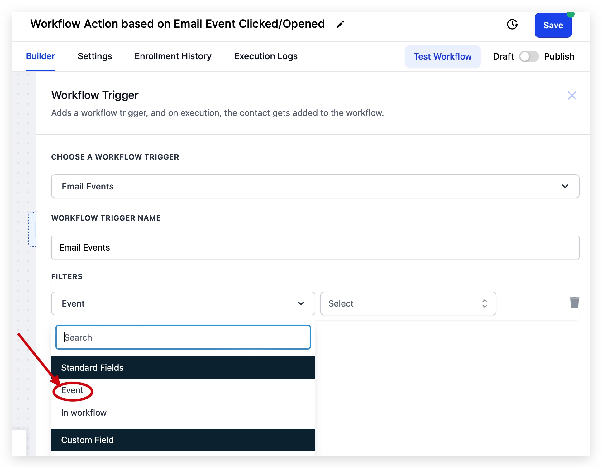
- Finally, select the specific event that should start the workflow. You can choose either "Clicked" (for when a link is clicked) or "Opened" (for when the email is opened).

Expected Outcome
After completing these steps, your workflow will be activated whenever a contact performs the selected action (click or open) on any email sent from your CRM. You can now build the subsequent automation steps, such as sending a follow-up SMS, adding a tag, or moving the contact to a new stage.