How to import a Funnel From ClickFunnels
How to Import a Funnel from ClickFunnels
You can import a funnel from ClickFunnels into your CRM to build upon existing landing pages and funnels. This process allows you to bring in pages you’ve already created and continue refining them within your CRM environment.
Prerequisites
- A ClickFunnels account with an existing funnel or page you wish to import.
- The public URL of the ClickFunnels page you want to import.
Step 1: Navigate to Funnels
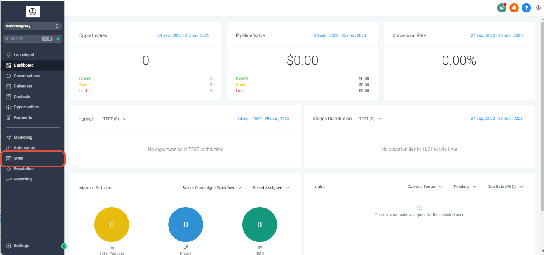
From your CRM dashboard, go to the section where you manage your funnels and sites.
Step 2: Access the Funnel List
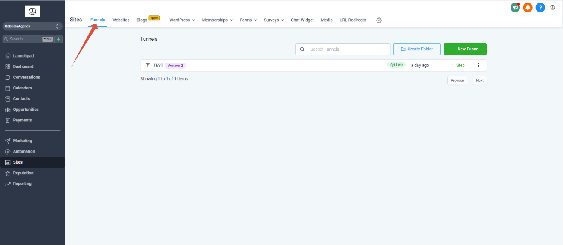
Click on the option to view all funnels. This is where you can create new funnels or manage existing ones.
Step 3: Create a New Funnel
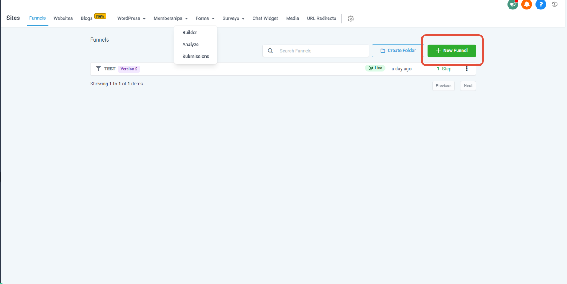
Click the button to create a new funnel. You’ll be prompted to give your funnel a name before proceeding.
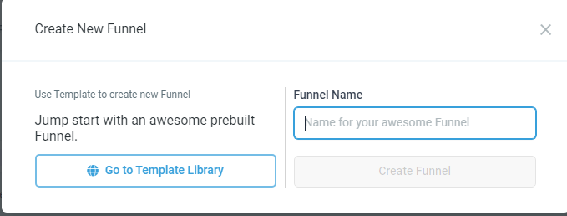
Enter a descriptive name for your funnel and confirm to create it.
Step 4: Add a New Step from ClickFunnels
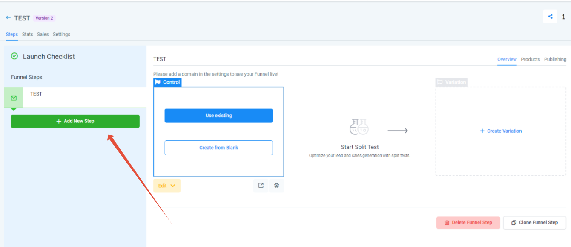
Inside your new funnel, click the option to add a new step. You’ll see several types of steps you can add—select the one that allows importing from ClickFunnels.
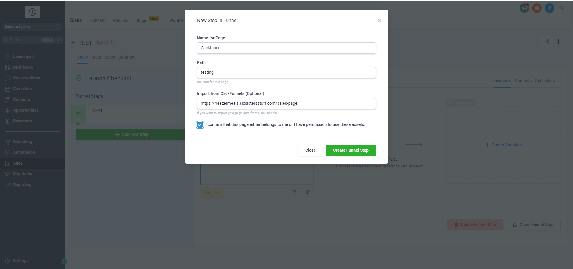
Enter a name for the page, specify a URL path, and paste the full ClickFunnels page URL. Check the confirmation box and click to create the funnel step. Your CRM will import the page from ClickFunnels and add it to your funnel.
Next Steps
After importing, you can edit the page using your CRM’s built-in editor, set up automation, add forms, or integrate with other parts of your CRM. The imported page is now part of your funnel and ready for use.