How to Integrate TikTok Lead Ads
How to Integrate TikTok Lead Ads
TikTok has become a powerful platform for reaching new audiences, and its Lead Ads feature helps businesses capture potential customers directly through the app. By integrating TikTok Lead Ads with your CRM, you can automatically collect and manage leads generated from your TikTok campaigns.
This guide will walk you through the steps to connect your TikTok Business account, map form fields, and set up workflows to handle incoming leads.
Prerequisites
Before you begin, make sure you have:
- An active TikTok Business account
- At least one instant form created in your TikTok Ads Manager
- Admin access to your CRM sub-account
Step 1: Access Integrations
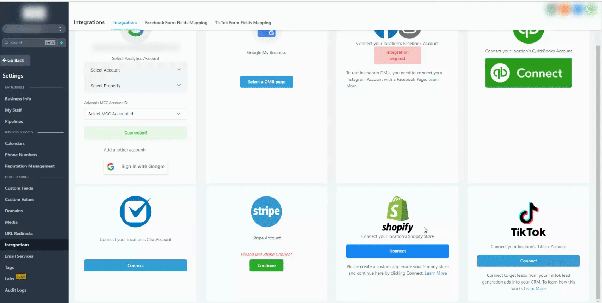
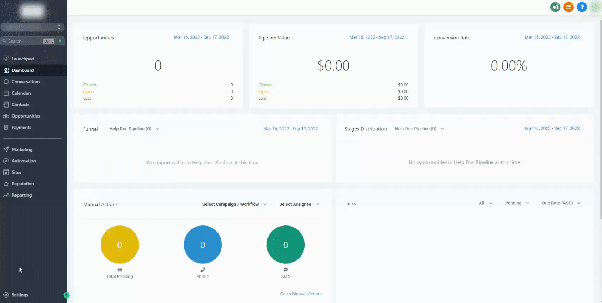
Navigate to the settings area of your CRM sub-account and locate the integrations section. This is where you can enable and manage third-party connections.
Step 2: Connect Your TikTok Business Account
Find the TikTok integration option and click to begin the connection process. You’ll be prompted to log into your TikTok Business account.
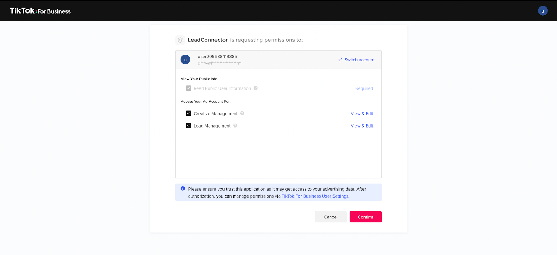
Review the permissions requested by the CRM—these are typically enabled by default—and confirm to proceed.
If you manage multiple TikTok advertiser accounts, you’ll be asked to select the one you want to connect. If you have only one, it will be selected automatically.

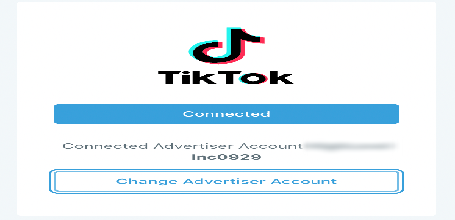
Once selected, the integration will complete, and your TikTok account will be linked to your CRM.
Note: You can change the connected advertiser account at any time using the change account option.
Step 3: Map Your Form Fields
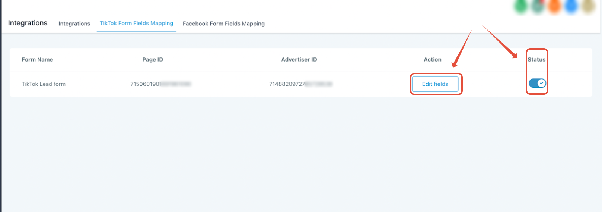
After connecting your account, go to the TikTok form mapping section. Here you’ll see all the instant forms you’ve created in TikTok.
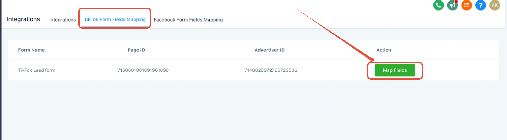
Click the map fields button to match each TikTok form field with a corresponding field in your CRM. If a field doesn’t exist, you can create a custom field for it.
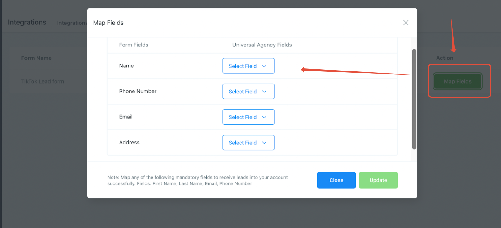
Supported custom field types include:
- TEXT
- LARGE_TEXT
- NUMERICAL
- PHONE
- MONETARY
- SINGLE_OPTIONS
- DATE
Note: Multi-select options are not currently supported but may be added in a future update.
Step 4: Create a TikTok Lead Workflow
To automate lead handling, create a workflow in your CRM using the “TikTok Form Submitted” trigger. Add a filter to specify which form should activate the workflow.
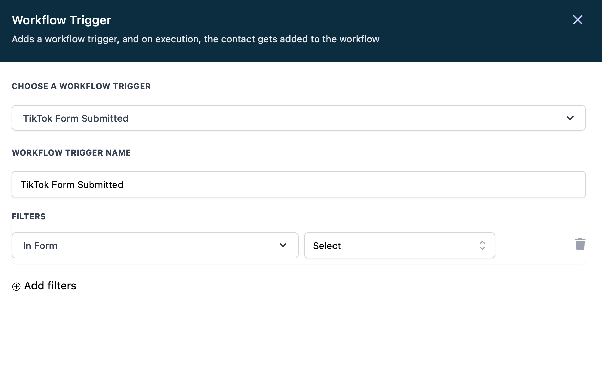
After setup, test the integration by submitting a lead through your TikTok form. The lead should appear in your CRM shortly.
Troubleshooting
Error: No pages for this account
This usually means you haven’t created an instant form in your TikTok Ads Manager. Make sure you have at least one active form before integrating.
Access token has expired
If your access token expires, disconnect the TikTok integration from your CRM and reconnect it. This will generate a new token. If the issue persists, contact support.
Changing form questions during a live campaign
If you update your TikTok lead form, you’ll need to create a new custom field in your CRM for the updated question, then revisit the form mapping section to reassign the field.
Can one TikTok account be connected to multiple sub-accounts?
Yes, as long as each sub-account has its form fields properly mapped.
How to prevent token expiration
The CRM receives a permanent access token from TikTok, so the integration should remain stable unless manually disconnected. If you see an expiration message, reconnecting usually resolves the issue.
Stopping incoming leads
To pause lead collection, toggle the integration status off in your CRM settings.