How to Integrate Your Google Business Profile (formerly GMB) into the CRM
Integrating Your Google Business Profile with Your CRM
Connecting your Google Business Profile (formerly Google My Business) to your CRM allows you to centralize your local business management and customer interactions. This integration can help streamline how you handle reviews and location information.
Prerequisites for Integration
Before you begin, ensure you meet these requirements:
- You have an active Google Business Profile for your location.
- You are logged into the CRM with the appropriate account permissions to manage integrations.
- The Google Account you plan to use has administrative access to the Google Business Profile you wish to connect.
Important: This Google Account must first be connected to your CRM sub-account at the general account integration level before you can link a specific business profile page.
Connecting Your Profile
To link your Google Business Profile, navigate to the integrations section within your CRM's settings.
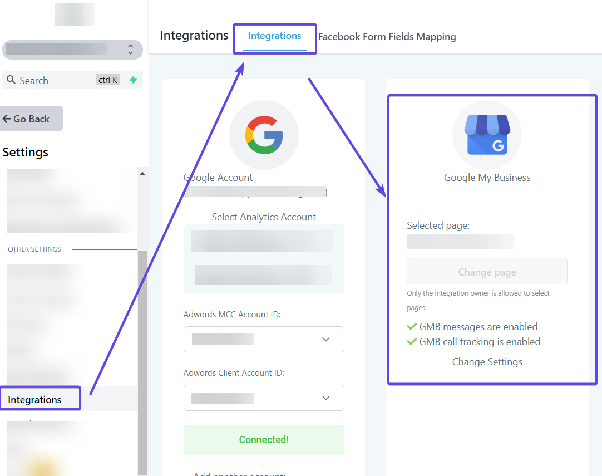
Locate the Google Business Profile integration option. The system will guide you through an authentication process, where you will be asked to select the specific business profile from your Google Account and grant the CRM the necessary permissions. Once authorized, the integration will be established, and your profile data will be accessible within the CRM.
Expected Outcome
After a successful setup, your CRM will be connected to your Google Business Profile. You can typically expect to manage aspects like new review notifications within your CRM platform, helping you monitor and respond to customer feedback from a single location.