How to set up appointment reminder workflow with Zoom location
How to Set Up an Appointment Reminder Workflow with Zoom Location
Automating appointment reminders with Zoom meeting links ensures your clients receive timely notifications with all the details they need. This guide walks you through creating a workflow in your CRM that triggers when an appointment is confirmed, waits briefly for Zoom data to process, and then sends reminder messages.
Prerequisites
Before you begin, make sure:
- Your Zoom integration is properly connected in your CRM settings.
- You have an appointment type configured to use Zoom as the location.
Create a New Workflow Trigger
Start by creating a new workflow and setting the trigger to activate when an appointment is scheduled.
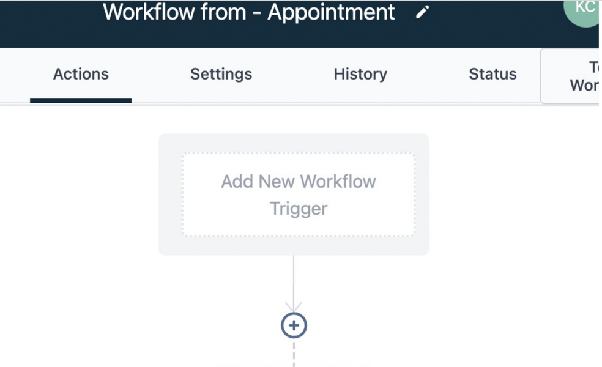
Select the trigger type related to appointments.
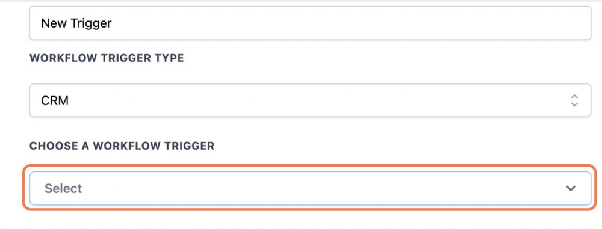
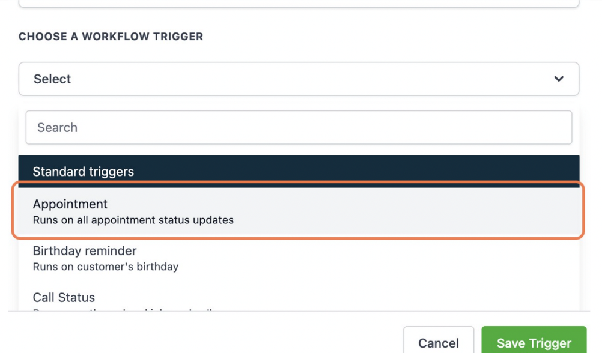
Choose the appointment event that should start the workflow.
Add a Filter for Confirmed Appointments
To ensure the workflow only runs for confirmed appointments, add a filter.

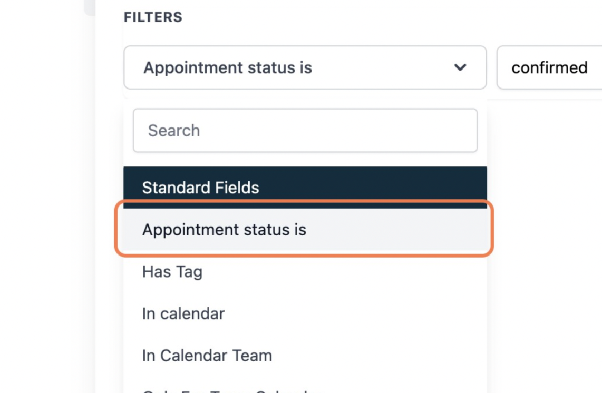
Select the filter condition.
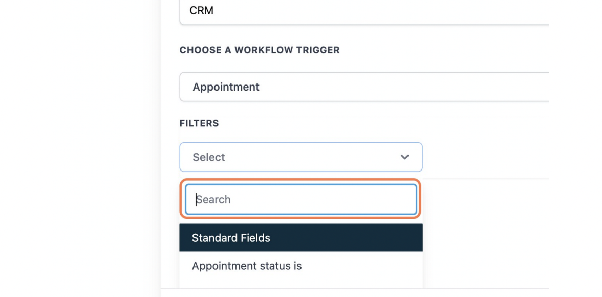
Choose "Appointment status is" as the condition.
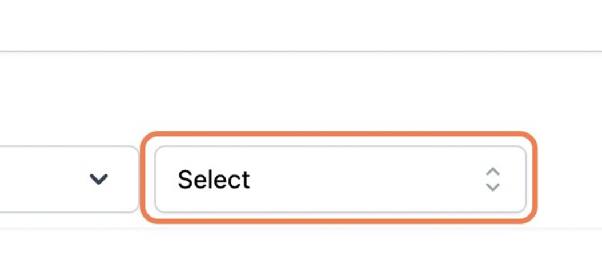
Select the value for the status.
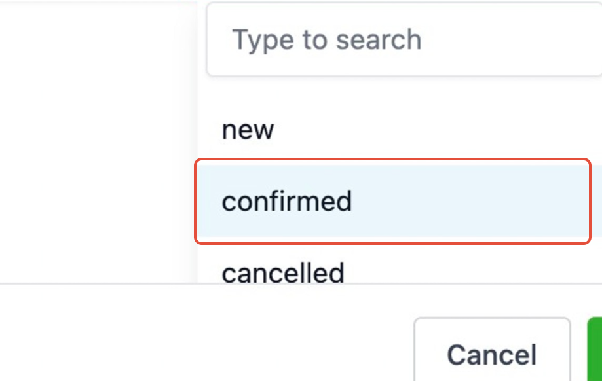
Set the status to "confirmed".
Save the trigger configuration.
Add a Wait Step for Zoom Processing
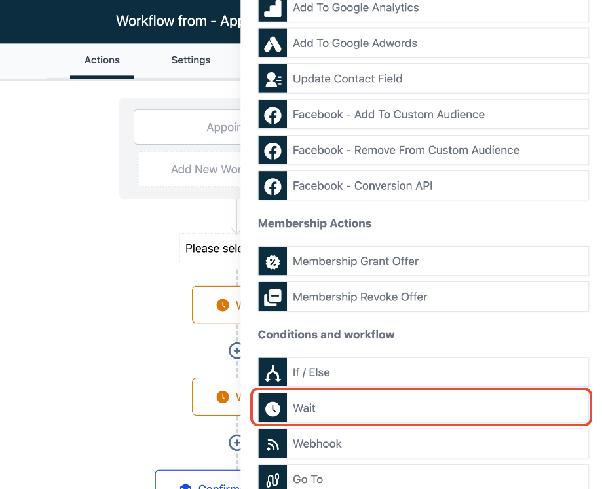
After the trigger, add a wait step to allow time for the Zoom meeting details to be generated and stored.

Scroll to find and select the Wait action.
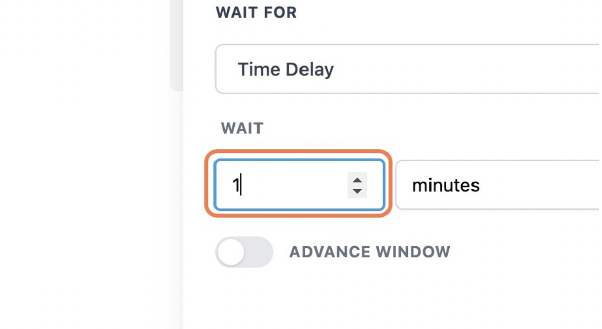
Set the wait time to 1 minute to ensure the Zoom location data is available for use in subsequent messages.
Save the wait action.
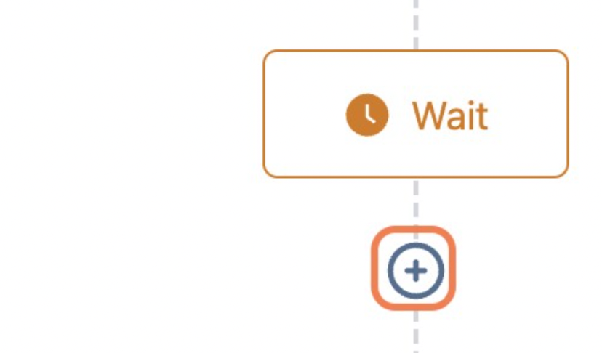
Add Confirmation Message
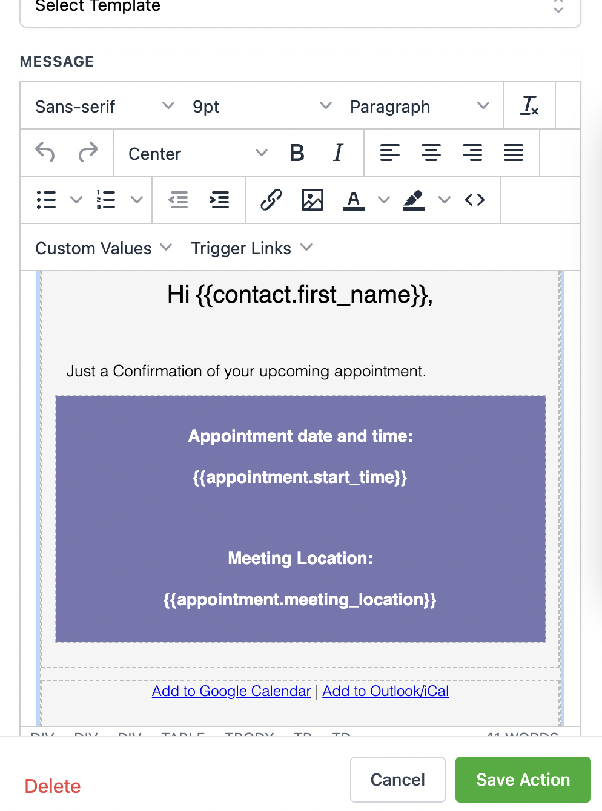
After the wait, add an email or SMS action to send an immediate confirmation that includes the Zoom meeting details.
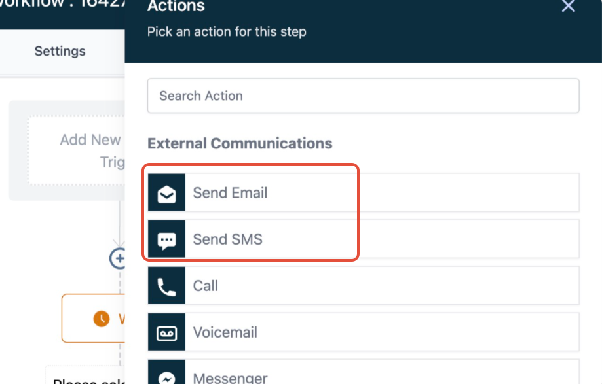
Use merge fields to dynamically insert the appointment time, date, and Zoom link. Save the message action.
Schedule a Reminder
Add another wait step to delay the reminder until closer to the appointment time.
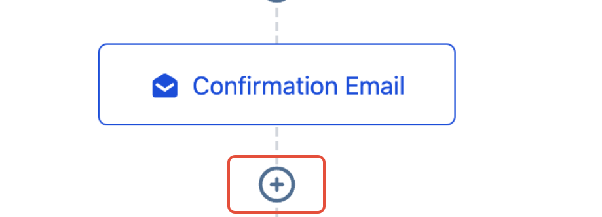
Select the wait action again.

Choose time delay based on the appointment time.
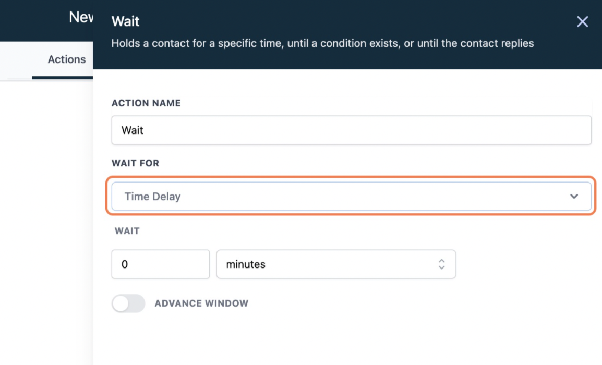
Select the option to wait until a specific time before the event.
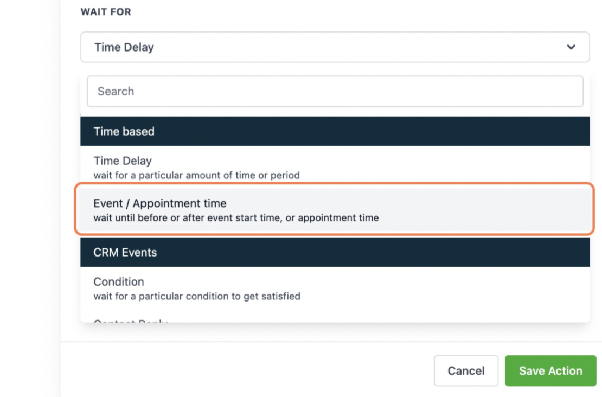
Enter how many units (e.g., days) before the appointment the reminder should send.
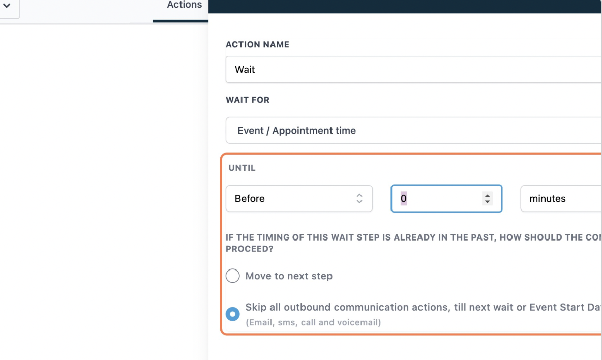
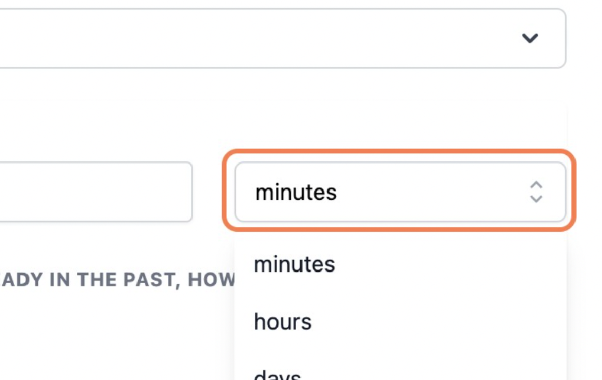
Change the unit from minutes to days (or hours, as needed).
Enable the option to skip communication until the wait is over, preventing premature messages.
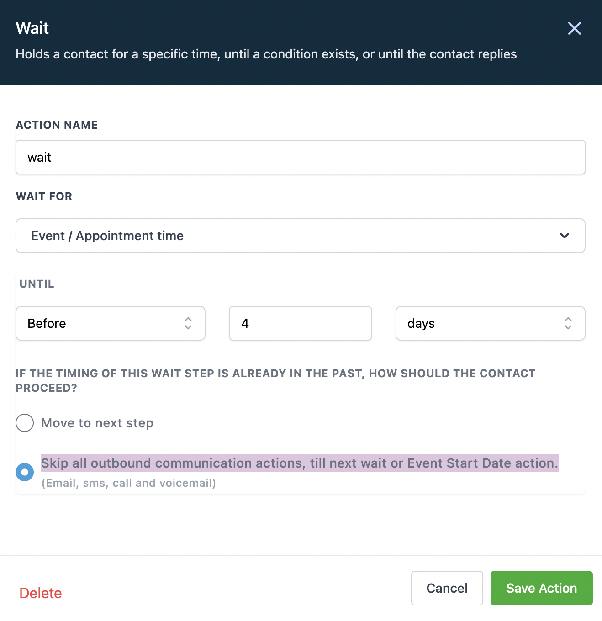
Save the wait step.

Add the Reminder Message
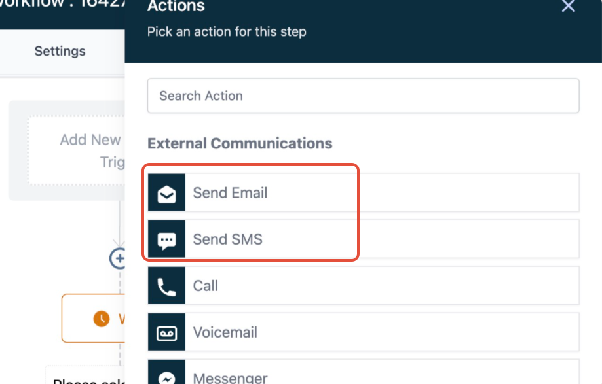
After the timed wait, add another email or SMS action to send the reminder, again including the Zoom link.
Finalize and Activate
You can add additional wait steps and messages for multiple reminders. Once configured, save and activate the workflow. Now, when a new appointment is confirmed with a Zoom location, your workflow will automatically send confirmation and reminder messages with the meeting details.