Enabling Cross-Site Tracking (3rd Party Cookies)
Launch Safari
Launch Safari by clicking its icon in the dock or by using Spotlight search (Cmd + Space), typing "Safari," and selecting the app from the results.Access Safari Preferences
In the top menu, click on "Safari" and then select "Preferences" or "Settings" from the drop-down menu. Alternatively, you can use the keyboard shortcut (Cmd + comma) to directly access the Preferences window.Open the Privacy Tab
Once the Preferences window appears, click on the "Privacy" tab at the top.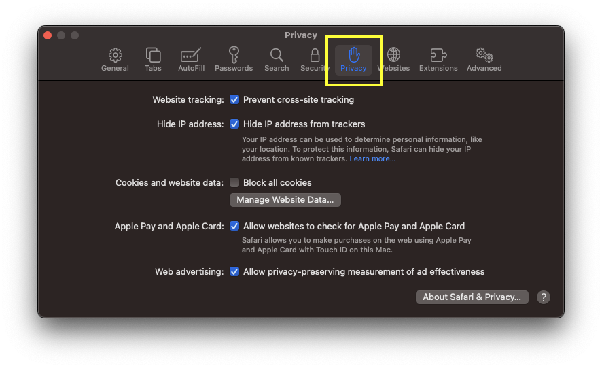
Customize Website Tracking Options
In the Privacy tab, you'll see various options related to website tracking. By default, Safari blocks cross-site tracking. To enable it, uncheck the box next to "Prevent cross-site tracking."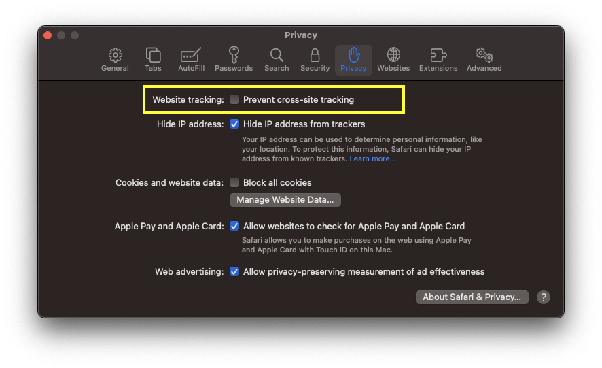
Close Preferences
After adjusting the desired settings, close the Preferences window.
Coming Soon
Chrome on WindowsComing Soon
Firefox on WindowsComing Soon
Microsoft Edge on WindowsComing Soon