How to add Payment Plans to your Invoices?
Overview
- Users can split their invoices into a payment plan installments
- A split can be made both on Percentage basis as well as amount basis
- Each split carries with it a Due Date and Payment Status of that split. Notifications will go on split's due date reminding user to Pay their installment (if not paid already)
- Payments can be done only in a predefined split and users can choose to pay one or more installment at a go. An invoice will get paid once all installments are paid.
- Streamline invoice payments with automated scheduled plans: When sending an invoice, simply enable auto-payments to ensure subsequent payments are charged automatically on their scheduled dates.
How to use it?
- Click on add payment schedule in an invoice
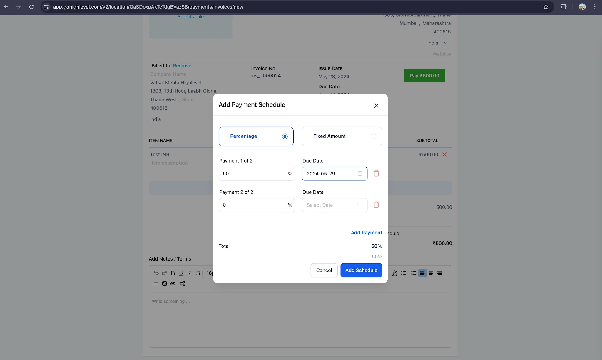
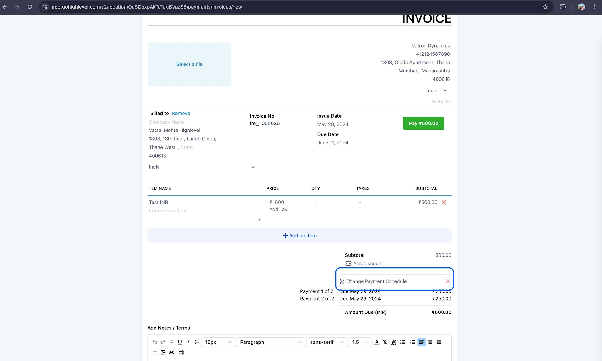 Set up the payment terms with a percentage or fixed amount and send it
  User will view the invoice with ability to view the plan on the invoice
 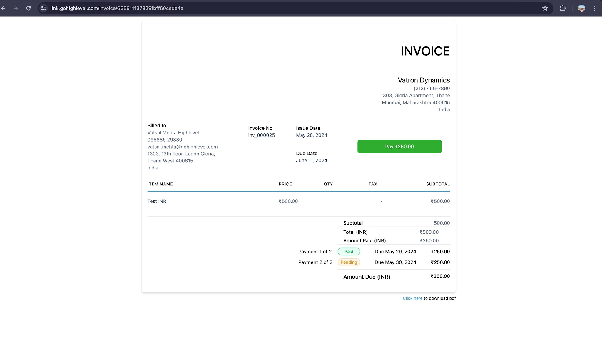 User will then pay the invoice and have an option to either select that payment schedule value or add other schedules as well by clicking on a checkbox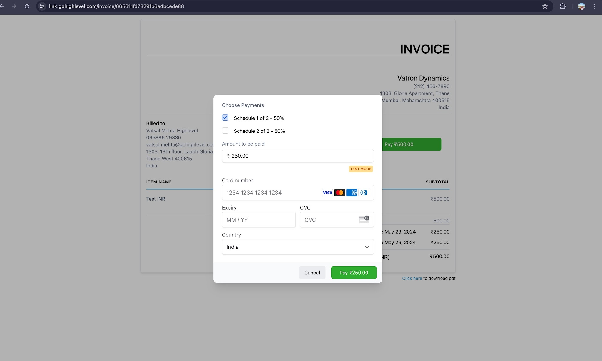
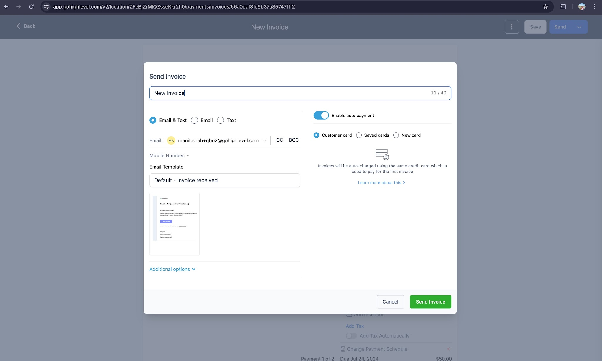
How to enable Auto-Payments on a single invoice with a payment plan?- Set up auto-payments: Click on send -> In the modal, enable auto-payments by clicking on the blue toggle while sending your invoice which has a payment schedule.
- Use a customer card (Card used for paying the first time), saved cards of the customer or a new card while sending the invoice out.
- Set up auto-payments: Click on send -> In the modal, enable auto-payments by clicking on the blue toggle while sending your invoice which has a payment schedule.
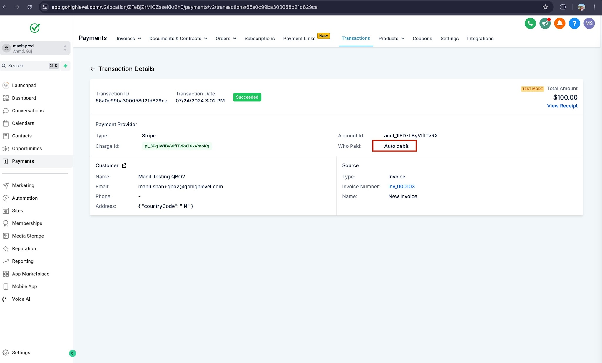
View details of the auto paid invoices in the transactions