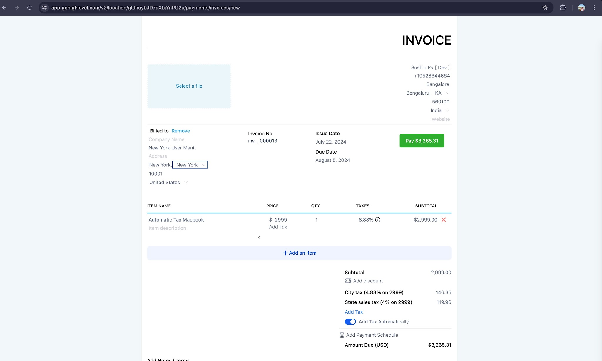
How to Set Up Automatic Tax Calculations in Invoices
Configuring Automatic Tax Calculations for Invoices
Your CRM can automatically calculate and apply sales tax to invoices based on your products and your client's location. This ensures accurate, compliant billing without manual entry for each transaction.
Prerequisites for Automatic Tax
For the system to calculate taxes automatically, three conditions must be met for each invoice:
- Product Tax Category: Every product or service on the invoice must have a tax category assigned. You can assign categories individually or set a default category in your payment settings.
- Client State: The contact receiving the invoice must have a valid U.S. state listed in their profile.
- Client Postal Code: The contact must also have a valid U.S. ZIP code in their profile.
When these conditions are satisfied and automatic taxes are enabled, they will apply to one-time invoices and will automatically be calculated for each new invoice in a recurring series.
Enabling Automatic Tax Calculations
Follow these steps to activate and use automatic tax features in your CRM.
- Navigate to the Payments section of your CRM, then access Settings and find the Taxes configuration area.
- Locate and enable the option for Automatic Taxes. You will be prompted to enter the required details, such as your business nexus states and tax registration information.
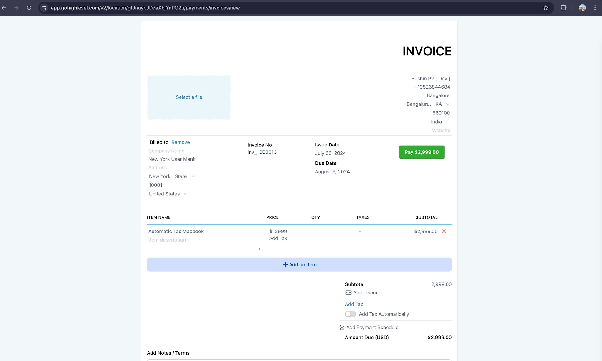
- Once configured, automatic taxes can be applied to individual invoices. When creating or editing an invoice, look for and enable the automatic tax option. The system will then calculate the tax based on the products and the client's address.
The CRM also provides a unified tax interface, allowing you to review and apply automatic calculations or enter manual tax adjustments for an entire invoice at once.