Text-To-Pay Links
Text-To-Pay Links
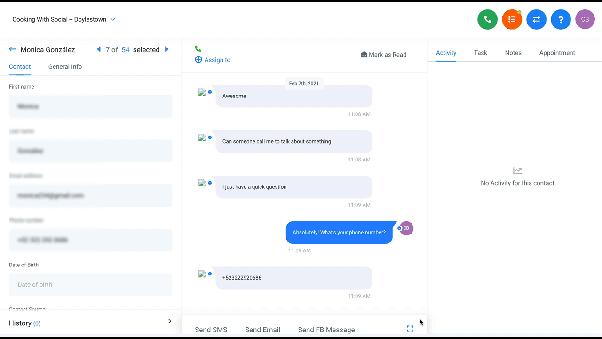
Text-to-Pay links allow you to send a secure payment request directly within an SMS conversation. The recipient can click the link to complete the payment using their credit card. This guide explains how to set up the required payment processor and create a payment link.
Prerequisites
Before you can create a payment link, you must have a payment processor connected to your CRM account. This process typically involves linking an external account to handle transactions.
Step 1: Connect a Payment Processor
First, you need to integrate your preferred payment service with your CRM.
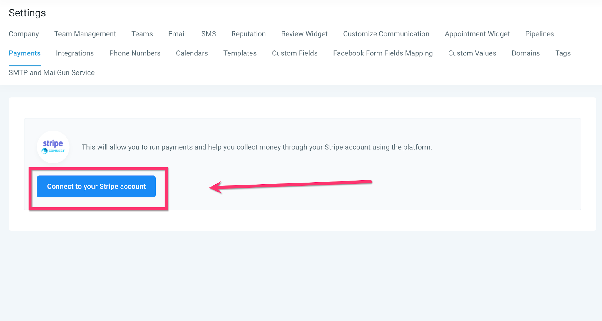
- Navigate to the Settings area of your CRM and locate the Payments section.
- Find the option to connect a new payment account.
- Follow the on-screen instructions to authorize the connection between your CRM and the payment service.
Once completed, your CRM will be ready to process payments.
Step 2: Create a Payment Link in a Conversation
After your payment processor is connected, you can generate and send payment links directly from an SMS conversation.
- Open the conversation with the contact you want to invoice.
- Look for the payment icon or option near the message composition area.
- A window will appear for you to configure the payment details. Enter a descriptive name for the invoice and the amount due.
- Optionally, you can set an expiration date or due date for the payment link.
- Save the invoice. The system will generate a unique payment link.
- The link will appear in your message composer; you can send it directly to the contact.
When the contact receives the message, they can click the link to securely submit their payment.