Configuring Sender ID and Opt-Out Language for SMS Compliance
Workflow Folder Permissions
Workflow folder permissions are a feature available exclusively on the Agency Pro Plan and higher subscription tiers.
Control Access to Workflows with Folder Permissions
Using folders helps organize your workflows, which are essential for automating business processes. Since workflows often require significant time and care to build, protecting them from unintended changes is important.
By setting permissions on a workflow folder, you can restrict access so that only authorized users can view, create, or edit the workflows inside. For example, if you limit a folder to agency administrators, only users with that role will be able to work with the workflows in that folder.
How to Set Permissions on a Workflow Folder
To manage who can access a workflow folder:
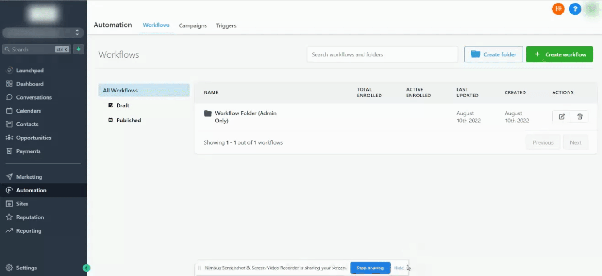
- Navigate to the Workflows section of your CRM.
- Locate the folder you want to secure and hover over it.
- Click the Actions menu (often represented by three dots or a dropdown arrow).
- Select Manage Permissions from the list.
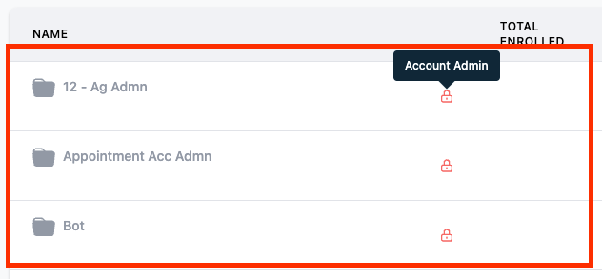
- Choose the user type or role that should have access to this folder (e.g., Agency Admin, Agency User, Account Admin, or All Users).
Important: Even if a user does not have folder permissions, they may still see a list of workflows a contact is enrolled in from the contact’s details page. They can also add or remove contacts from any workflow, regardless of folder access.
Access Levels by User Type and Role
The table below shows which users gain access based on the permission setting:
- Folder set to Agency Admin: Only Agency Admin users can access it.
- Folder set to Agency User: Both Agency Admin and Agency User roles can access it.
- Folder set to Account Admin: Access is granted to Agency Admin, Agency User, and Account Admin.
- Folder set to All: All user types and roles can access the folder.
What Users Without Access Will See
If a user’s role does not grant them permission to view a workflow folder, they will not see the folder or its contents in the main workflow list. The folder will be hidden from their view entirely.