How to Fix Bad Call Quality
How to Fix Bad Call Quality
Poor call quality can disrupt your communication with leads and clients. This guide helps you diagnose and resolve common VoIP issues in your CRM, covering device, network, and software troubleshooting.
What Causes Bad Call Quality?
Call issues like choppy audio, one-way sound, or dropped calls often stem from internet instability, device interference, or network misconfigurations. Since CRM uses internet-based telephony, even small local issues can impact performance.
Benefits of Improving Call Quality
- Increased reliability: Fewer dropped calls and smoother conversations.
- Better customer experience: Clear audio builds trust and satisfaction.
- Improved productivity: Agents spend less time troubleshooting and more time engaging.
- Professional image: Crisp sound reflects well on your business.
Steps to Fix Call Quality
- Use a wired connection: Ethernet is more stable than Wi-Fi. Connect directly to your modem or router.
- Close bandwidth-heavy apps: Pause streaming, downloads, or backups during calls.
- Restart your router and modem: Unplug both for 30 seconds, then reconnect.
- Update your browser or app: Use the latest version of Chrome or the CRM desktop app.
- Use Chrome for calling: It offers the best VoIP performance with CRM.
- Use a headset: Headsets reduce echo and improve mic quality.
- Check for conflicting apps: Disable extensions or software that may interfere.
- Verify internet speed: Aim for at least 5 Mbps upload and download.
- Check firewall settings: Ensure UDP ports 10000–20000 are open.
- Contact support: If issues persist, provide call logs and setup details.
Advanced Network Issues
For persistent problems, consider these technical factors:
- Jitter: Inconsistent packet delivery. Keep it under 30ms.
- Latency: Delay in voice transmission. Target below 150ms.
- Packet loss: Lost data during calls. Should be 0%.
Understanding Error Codes
CRM displays real-time alerts during calls to help diagnose issues.
Web App Errors
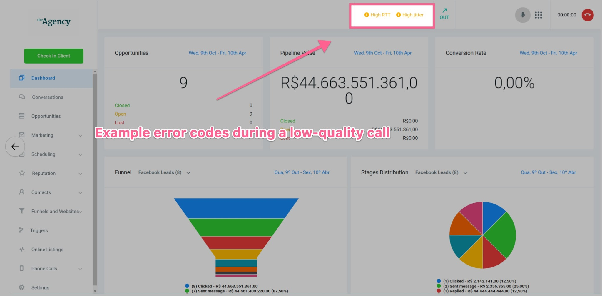
Look for indicators at the top of your screen:
high-rtt: High latency—calls may sound delayed.high-jitter: Inconsistent audio—may cause crackling.high-packet-loss: Choppy or missing audio.
Mobile App Errors
The app shows warnings like:
high-rtt: Network delay detected.high-jitter: Risk of choppy audio.high-packet-loss: Audio may be distorted.low-mos: Overall poor call quality.
Frequently Asked Questions
Q: Why do calls sound robotic?
A: Usually due to jitter or packet loss. Try a wired connection and close other apps.
Q: Is Wi-Fi okay for calls?
A: Yes, but wired is more stable.
Q: Which browser works best?
A: Use Chrome for optimal performance.
Q: Why can’t others hear me?
A: Check mic settings and browser permissions.
Q: How do I test my internet speed?
A: Use a site like Speedtest.net—aim for 5+ Mbps with no packet loss.
Q: What if issues continue?
A: Contact support with specific examples for help.