Outbound Calls / Softphone - How It Works
Performing a Blind Transfer
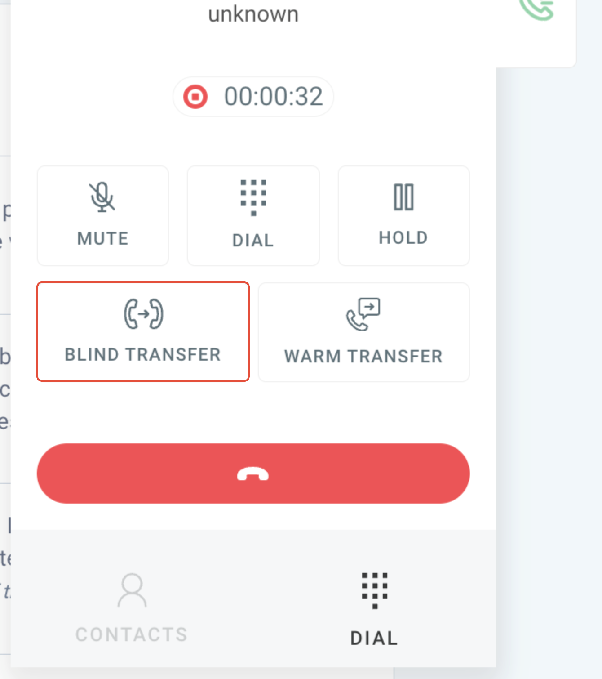
A blind transfer immediately sends an active call to another contact without first speaking to the recipient. To perform one, you must be on an active call using the CRM's softphone.
- While on your call, locate the transfer function within the softphone interface.
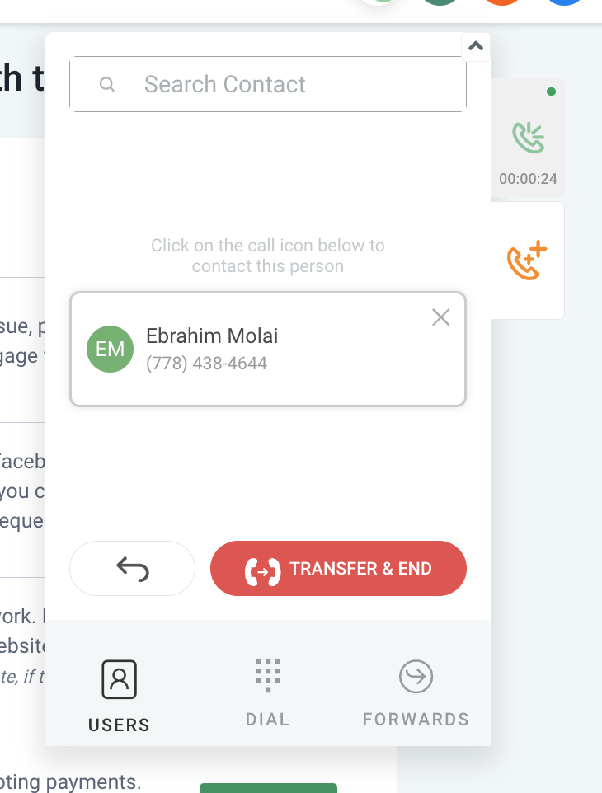
- Use the search field to find the contact you wish to transfer the call to.
- Select the desired contact from the search results. This will immediately end your current call and connect the caller to the new contact.
Performing a Warm Transfer
A warm transfer allows you to speak with the recipient before connecting them to the original caller. This is useful for providing context.
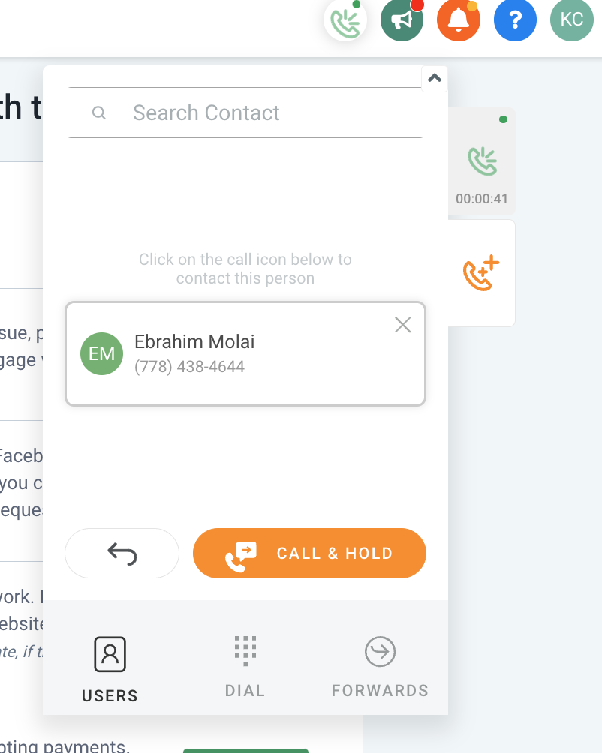
- While on an active call, initiate the transfer process and place the current caller on hold using the hold function.
- Search for and select the contact you want to transfer the call to. This will call that contact while your first caller remains on hold.
- Once the new contact answers, speak with them privately. You will then have an option to merge the two calls, connecting all three parties, or to complete the transfer by leaving the call.
Frequently Asked Questions
Why are my outbound calls showing my default number instead of my assigned user number?
Outbound calls from the softphone will use your personally assigned phone number only when your user profile is configured correctly. Two key settings control this:
- Your user role must be set to "User" (not "Admin").
- The setting to use your assigned phone number for outbound calls must be enabled in your user profile.
If either condition is not met, the system will default to using the main account phone number for outbound calls.
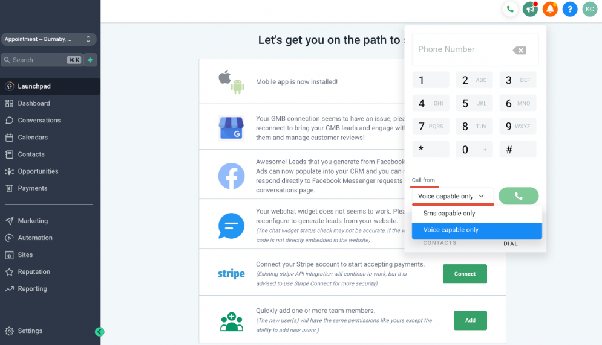
You can also manually select your calling number on a per-call basis. When you open the dialer to make a call, look for a dropdown menu (often labeled "Call from" or similar) where you can choose which of your available phone numbers to display for that specific call.