Facebook Publishing Troubleshooting Guide
Facebook Publishing Troubleshooting Guide
If you're experiencing issues with publishing content to Facebook through your CRM's Social Planner, this guide will help you identify and resolve common problems. Follow the steps below to troubleshoot, and if the issue persists, please contact support with specific details.
Facebook Pages Not Showing in the List
If your Facebook pages aren't appearing when you try to connect them in the Social Planner, it's usually due to permission issues. Ensure you have the necessary admin rights and that all required permissions are granted during the connection process.
Check Your Facebook Page Permissions
To resolve missing pages, verify that you have full administrative access to the page on Facebook itself.
Step 1: Log in to Facebook and navigate to your page.
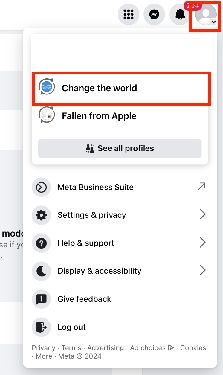
Step 2: Click on your profile icon and select your page.
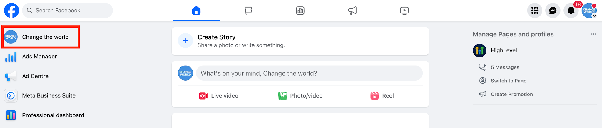
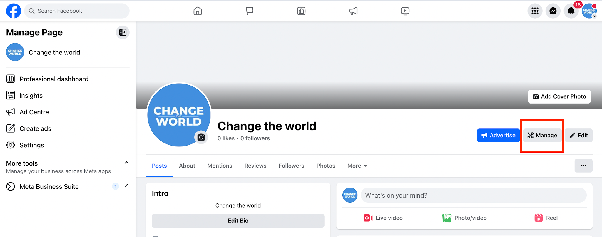
Step 3: Go to the page and click "Manage".
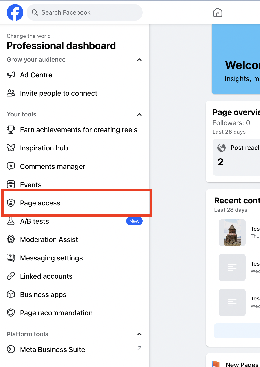
Step 4: In the left panel, find "Page Access".
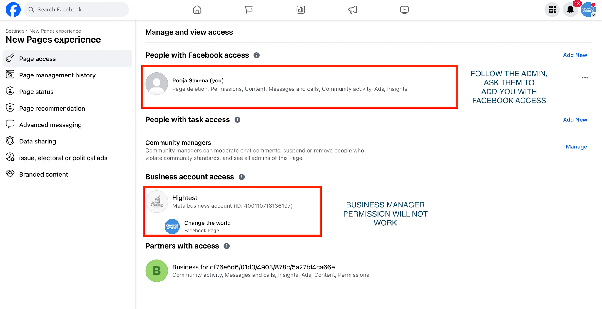
Step 5: Confirm you are listed with full access. If not, ask the page owner to add you as an admin.
Review Business Integrations
If you're an admin but still can't see the page, check your Facebook Business Integrations settings.
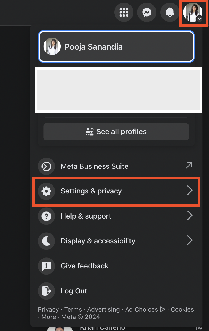
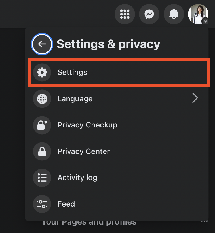
Step 1: Log in to Facebook and go to Settings & Privacy > Settings.
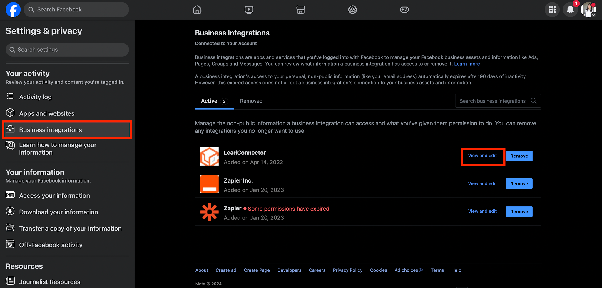
Step 2: Navigate to Business Integrations and find your CRM integration.
Step 3: Click "View and Edit" to review permissions.
Select All Pages and Save
Ensure all desired pages are selected in the permissions popup.
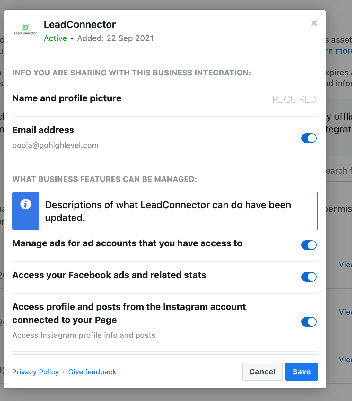
After saving, reconnect your Facebook account in the Social Planner settings. The previously missing pages should now appear.
Facebook Post Failed to Publish
If your posts are failing to publish, here are some common errors and how to fix them:
1. Abusive Content or Link Against Community Standards
Facebook may block content that has been reported or violates their guidelines. Review your post for any potentially offensive material or links.
2. Error Validating Access Token
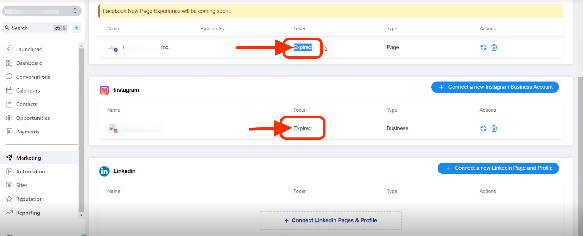
This error occurs if your Facebook session has expired. This can happen if you changed your password or haven't posted in 90 days. Reconnect your Facebook account in the Social Planner to refresh the token.
3. Two-Factor Authentication Required
If the Facebook page has two-factor authentication enabled, you must enable it on your personal account as well. Reconnect after enabling 2FA.
4. 'manage_permissions' Must Be Granted
If you're managing a client's page, ensure you have admin access and granted manage_permissions during the connection process.
5. Missing or Invalid Image
If the image link in your post is broken or inaccessible, the post will fail. Verify that all media URLs are valid and publicly accessible.
6. An Unknown Error Occurred
This often indicates insufficient permissions. Reconnect your Facebook page and ensure all permissions are granted during the authentication flow.
7. Invalid URL or Link Cannot Be Posted
Facebook may reject posts with URLs they consider spammy or malicious. Check the link for issues and try a different URL if necessary.