How to use Printful Integration with your Ecommerce Store
How to Use the Printful Integration with Your CRM Ecommerce Store
Understanding the Printful Integration
Printful is a print-on-demand and fulfillment service that lets you sell custom products without managing inventory or shipping. By connecting it to your CRM's store, you can automatically sync your product catalog and orders. When you add, update, or fulfill a product in Printful, those changes are reflected in your connected online store.
Key Features of the Integration
- Product Import: Bring all products from a specific Printful store into your chosen CRM store location.
- Automatic Synchronization: Products and their updates are synced in real-time between Printful and your store.
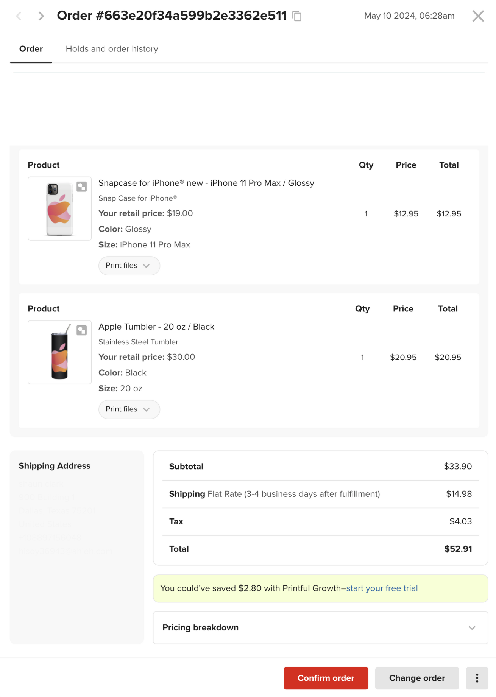
- Order Creation: When a customer places an order in your store, a corresponding order is automatically created in your Printful account for fulfillment.
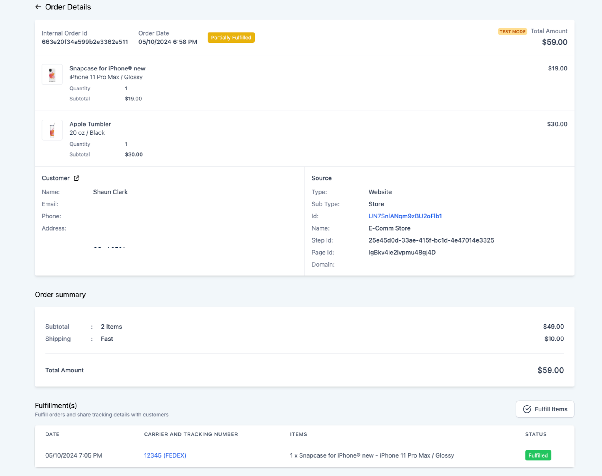
- Fulfillment Tracking: Shipping statuses and tracking information from Printful are synced back to your CRM, including partial and complete shipments.
- Customer Notifications: When an order is fulfilled, customers automatically receive email notifications with the shipping details provided by Printful.
Important Notes Before You Begin
- Imported products are not published automatically. You must manually enable them in your store after import.
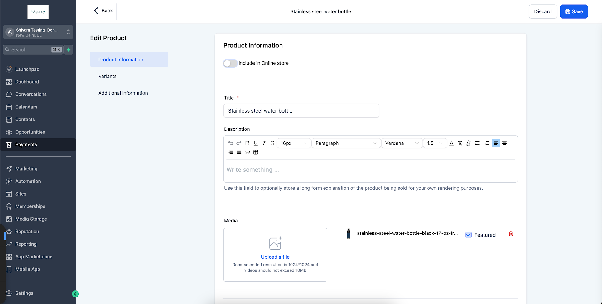
- Product descriptions are not imported from Printful in the current version. You will need to add them within your CRM.
- If you disconnect the integration, your previously imported products will remain in your CRM store location.
- You can connect one Printful store to multiple different store locations within your CRM.
- Printful has regional delivery restrictions for certain products. If a customer's shipping address is not supported, the order will not be created in Printful.
- During setup, if you choose to create a new store, Printful will generate one named "CRM Store".
Steps to Integrate Printful with Your Store
1. Install the Printful App
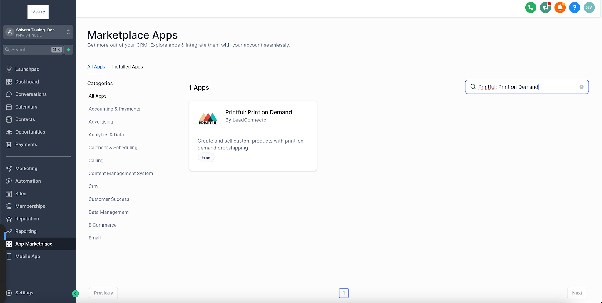
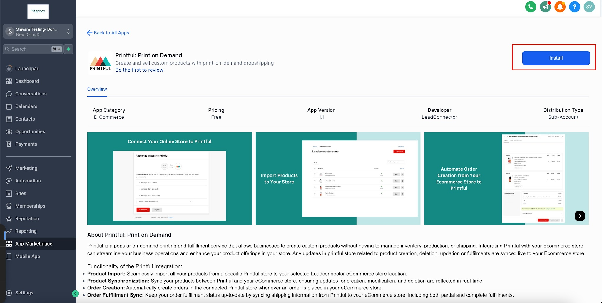
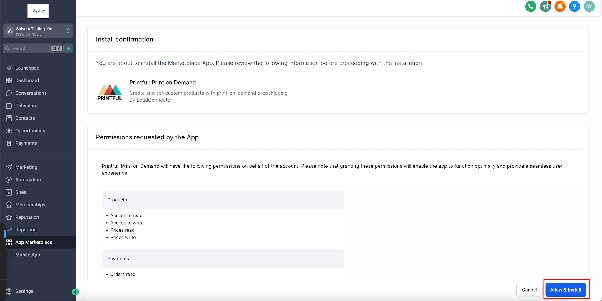
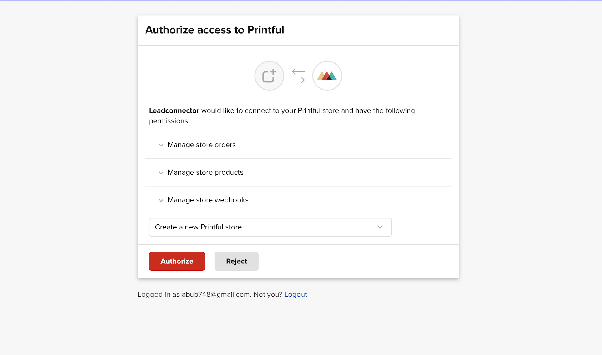
Navigate to the Integrations section within your CRM's settings. Find the App Marketplace, search for the Printful application, and install it. You will need to authorize the connection between your CRM and your Printful account.
2. Connect a Store and Import Products
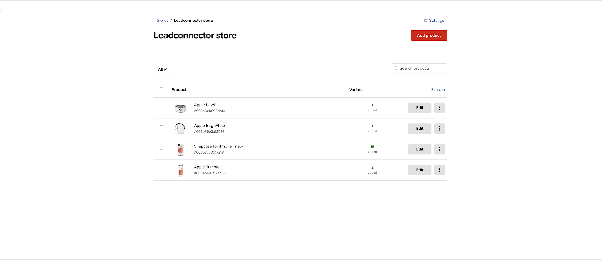
After authorization, select which of your Printful stores to connect. Then, choose the destination store location within your CRM where you want the products to appear. Initiate the product import. If you don't have an existing Printful store, you can create a new one during this process.
3. Publish and Customize Your Products
Imported products will be in an unpublished state. Go to your CRM's product management area to find them. Here, you must manually publish each product to make it live in your store. Remember to add descriptions and customize any other details, as this information is not pulled from Printful.
4. Order Processing and Fulfillment
Once live, orders placed in your CRM store will automatically generate orders in your connected Printful store. You can monitor this process from your CRM's order dashboard.
5. Track Fulfillment Status
As Printful processes and ships orders, the fulfillment status and tracking details will automatically update in the corresponding order within your CRM. This includes both partial shipments (if an order contains multiple items) and complete fulfillments.
Final Considerations
- Always verify a product's delivery regions in the Printful catalog before publishing it, as some items have geographic restrictions.
- Ensure customer shipping addresses entered during checkout are accurate and complete. Orders with unsupported addresses will fail to sync to Printful.
- The integration streamlines operations, but you remain responsible for final product presentation and verifying customer delivery eligibility.