How to sync Calendars With Outlook
How to Sync Calendars With Outlook
Synchronizing your Outlook calendar with the CRM lets you manage appointments and events in one place, eliminating the need to switch between applications. This guide will help you connect your Outlook account and configure your calendar settings for two-way sync or conflict checking.
Please note: The Outlook integration is available only on specific subscription plans. Check your plan details to confirm eligibility.
What You'll Need
- A CRM account with appropriate permissions to modify your profile settings.
- An active Outlook account (Office 365, Outlook.com, Hotmail, or Live.com).
- Only one Outlook account can be linked per user in each location.
Connecting Your Outlook Account
To begin, you need to link your Outlook account to the CRM.
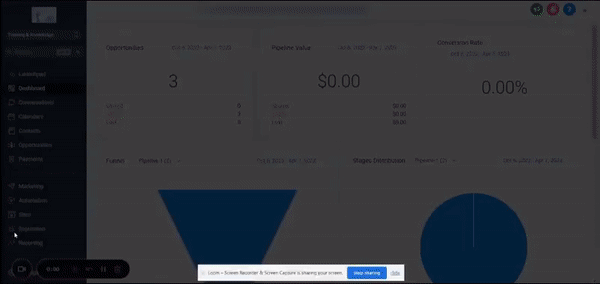
- Log into your CRM and go to your user profile settings.
- Look for the Integrations section.
- Find the option for Outlook and click to connect.
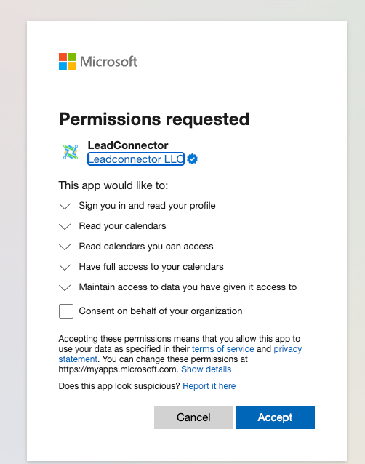
You'll be redirected to Microsoft to authorize the CRM to access your calendar. Follow the prompts to grant permission.
Configuring Your Calendar Sync Settings
Once connected, you can choose how the CRM interacts with your Outlook calendar.
Navigate to your profile settings again and locate the Calendar Configuration area. Here you'll find two main options:
- Primary Calendar: Syncs events both ways—CRM appointments appear in Outlook, and Outlook events appear in the CRM.
- Check for Conflicts: Only imports events from Outlook to avoid scheduling conflicts; does not write CRM appointments back to Outlook.
Setting Up Your Primary Calendar
- In Calendar Configuration, click to edit the Primary Calendar setting.
- Select your connected Outlook account from the dropdown.
- Choose which specific Outlook calendar you want to sync with.
- Save your changes.
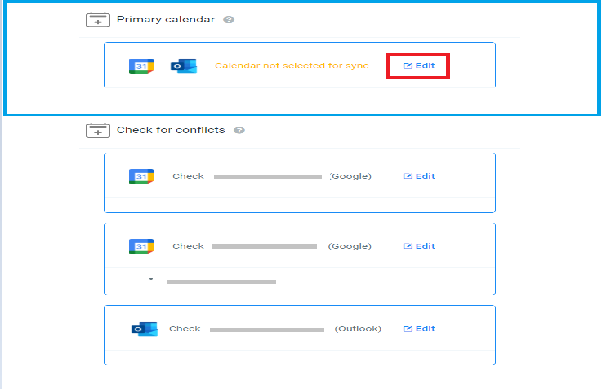

Tip: If appointments aren't syncing properly, try reselecting your calendar. Edit the Primary Calendar setting, choose "Do not sync," save, then reselect your calendar and save again.
Setting Up Conflict Checking
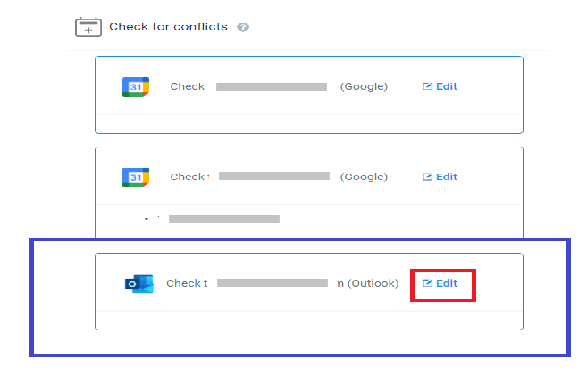
- Edit the Check for Conflicts setting.
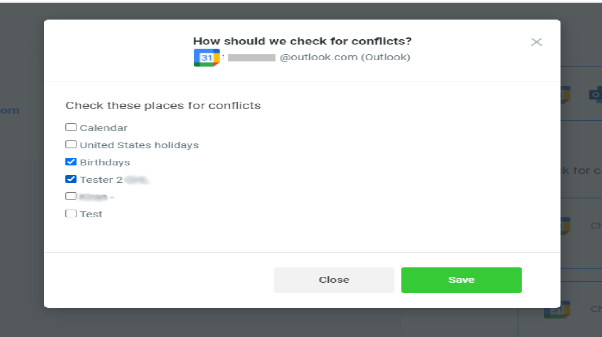
- Select your Outlook account and choose the calendar you want to monitor for busy times.
- Save your configuration.
Frequently Asked Questions
Can I use both Google Calendar and Outlook at the same time?
Yes. You can set one service as your primary calendar and use the other for conflict checking. However, you can only write appointments to one calendar at a time.
Can I connect the same Outlook account to multiple users?
No. Each Outlook account can only be linked to one user per location. If the same person has multiple user accounts in the CRM, each must use a different Outlook account.

Is there a workaround for sharing an Outlook calendar with another user?
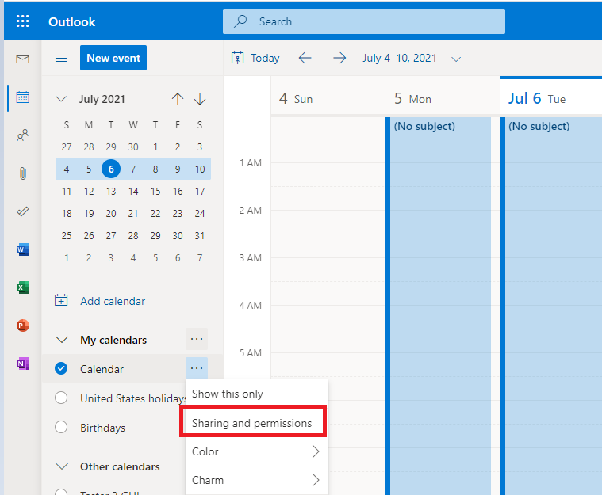
Yes. The user who owns the Outlook calendar can share it with another user's Outlook account. Then the second user can connect their own Outlook account and access the shared calendar.
Can an admin connect Outlook for team members?
No. Each user must log into their own CRM account to connect their Outlook calendar. Admins can later adjust calendar settings via team management if needed.
Does Outlook integration work with unassigned calendars?
No. This integration is designed for team or user calendars, not unassigned calendars.
What should I do if sync issues occur?
First, try disconnecting and reconnecting your Outlook account in the Integrations section. If problems persist, reselect your calendar in the Primary Calendar settings as described earlier.