How to delete a contact and associated contact data
How to Delete a Contact and Associated Contact Data
This article explains how to permanently remove one or more contacts from your CRM, including all data associated with them. Please note that only users with Administrator permissions can delete contacts. Account Users do not have access to this function.
Step 1: Select Contacts for Deletion
To begin, navigate to the Contacts section within your sub-account. Use the search or filter options to find the contact(s) you wish to remove. Once located, select the checkbox next to each contact you want to delete.
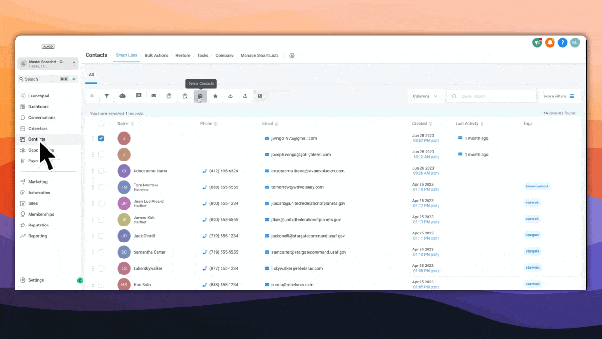
After selecting the contacts, click the trash can icon to initiate the deletion process.
Step 2: Confirm Deletion
A confirmation dialog will appear, listing the contacts you've selected for removal. To proceed, type DELETE in the provided text field and confirm the action.
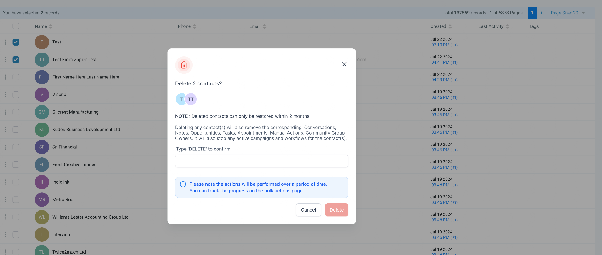
Deleted contacts and their data are permanently removed after two months. Within that period, you may be able to restore them if needed.
Step 3: Review Bulk Action Status
After confirming, you can check the status of your deletion request in the Bulk Actions area. This page provides details about the progress and outcome of the operation.
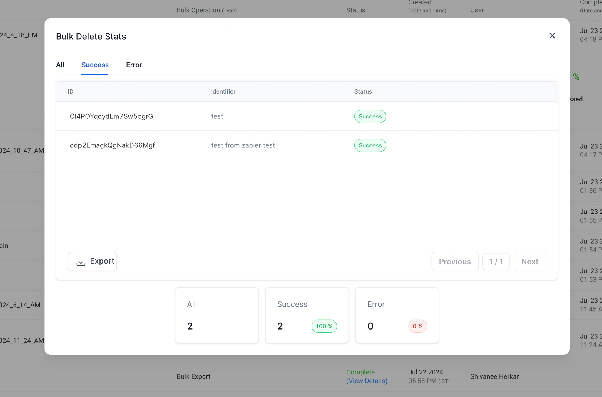
Once complete, the selected contacts and all related information will be removed from your CRM.