Hide Email Elements on Mobile View
Hiding Email Elements on Mobile View
In the CRM, you can customize how your emails appear on different devices by hiding specific elements on mobile or desktop. This is useful for creating a cleaner, more focused layout for mobile users.
To hide an element on mobile view:
- Open the email template or campaign you wish to edit within the CRM's drag-and-drop email editor.
- Locate the specific element (like an image, button, or text block) that you want to hide on mobile devices.
- Click on the element to select it. A toolbar or settings menu for that element will appear.
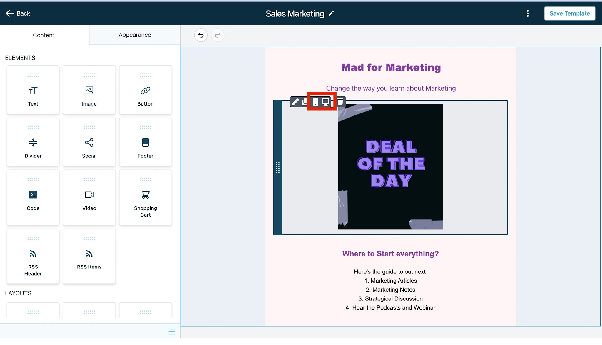
- Look for an option in the toolbar related to visibility, often represented by an icon for mobile or desktop view.
- Click the option to hide the element on mobile. The element should remain visible in the desktop preview but will be hidden when the email is viewed on a mobile device.
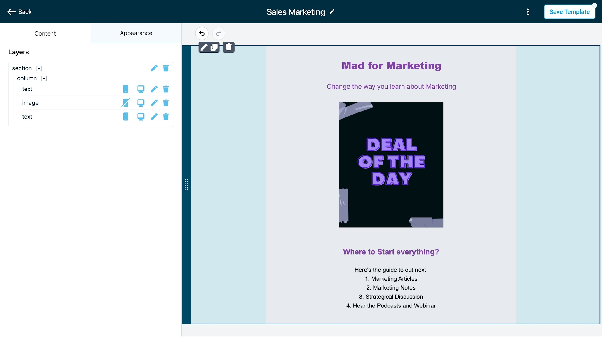
Previewing and Testing Your Changes
After configuring the visibility settings, it is important to preview and test your email to ensure it displays correctly.
- Save your changes to the email template or campaign.
- Use the preview function in the editor to toggle between desktop and mobile views. This allows you to confirm that the element is hidden on mobile but still visible on desktop.
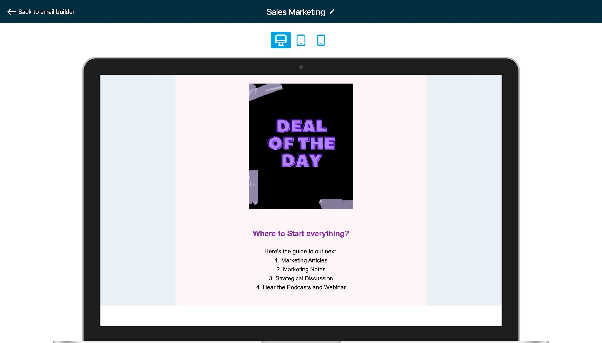
- For a real-world test, send a test email to yourself and view it on both a mobile device and a desktop computer to verify the behavior.
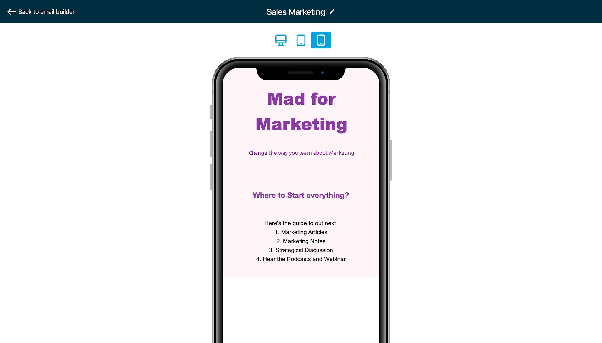
Once you are satisfied with the preview, your email is ready to be sent to contacts, who will see the appropriate content based on their device.