How to Use the Spread to Column Option in Forms and Surveys
How to Use the Spread to Column Option
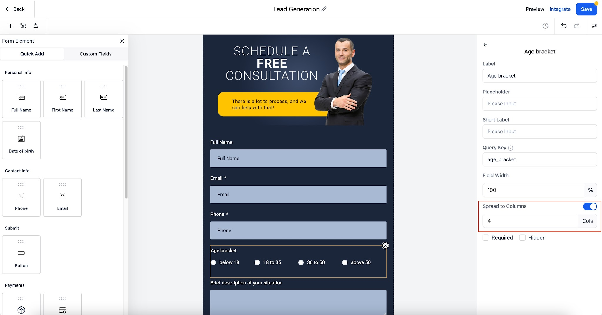
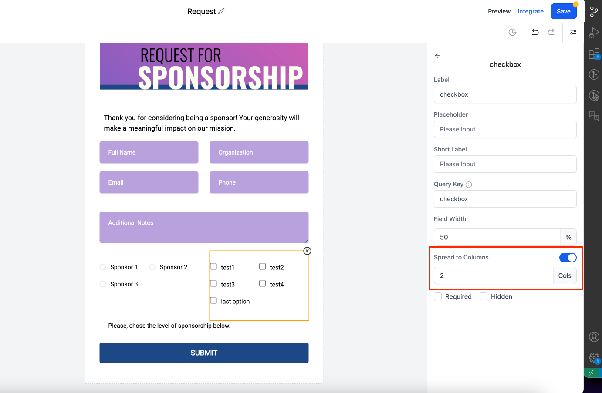
The Spread to Column option allows you to arrange form or survey choices in multiple columns, improving layout and readability. Here’s how to use it:
- Open the Form or Survey Builder in your CRM.
- Select a Radio, Checkbox, or Radio Image field that contains multiple options.
- In the field settings panel, locate and enable the Spread to Column option.
- Specify the number of columns you want to use.
- Save your changes and preview the form to confirm the layout.
Key Features and Benefits
Improved Styling
Create visually appealing forms by organizing options into columns, which helps structure content neatly and reduces visual clutter.

Better User Experience
Make it easier for respondents to scan and select options, improving form completion rates and overall satisfaction.
Important Notes
- For single column layouts, the maximum number of columns allowed is 5.
- For two-column layouts, the maximum is 2 columns.
- For single line column layouts, the maximum is 5 columns.
- This feature only applies to forms created or edited after enabling it; older forms remain unchanged.