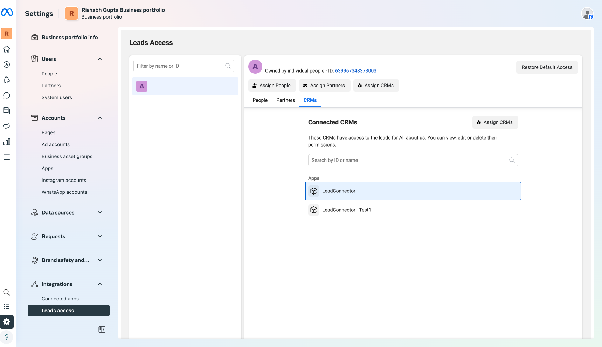
Facebook Multi page Troubleshoot
Troubleshooting Facebook Lead Ads Integration
If your Facebook Lead Ads aren't appearing in your CRM account, follow these troubleshooting steps to identify and resolve the issue.
Check Admin Access and Form Selection
First, verify you have full administrative access to the Facebook page associated with the ads. Then, confirm that the correct lead ad form is selected in Facebook Ads Manager and that it matches the form linked within your CRM settings.
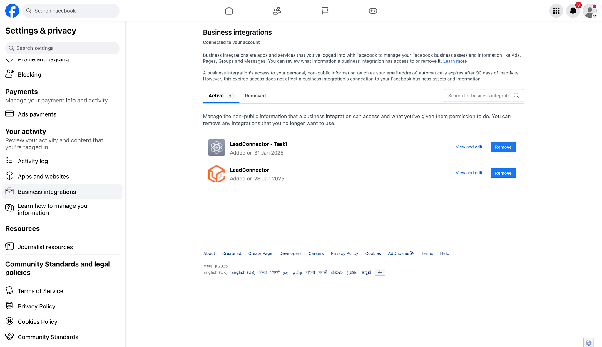
Verify CRM Permissions
Ensure your CRM has the necessary permissions to access your Facebook page and leads. Navigate to your CRM's integration settings and review the Facebook connection status.
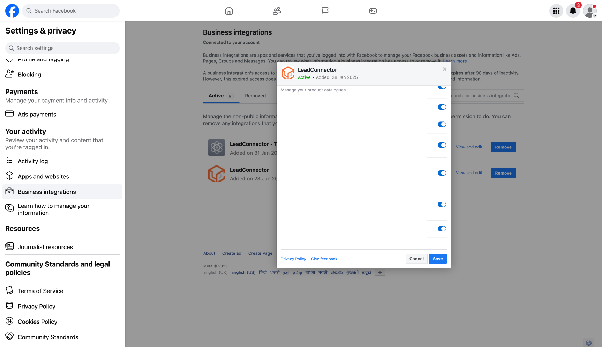
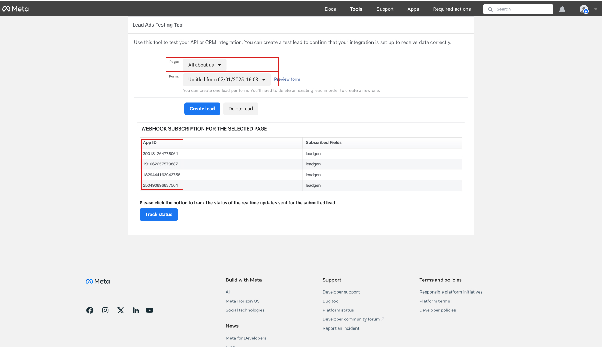
Test Lead Delivery
Use Facebook's lead ads testing tool to check if leads are being delivered. Select the appropriate page and form, and confirm the correct App ID is present. If the App ID is missing, you may need to reassign permissions.
Reassign CRM Access on Facebook
If access has been revoked or the App ID isn’t showing, manually reassign lead access permissions:
- Go to Facebook Business Suite or Business Settings.
- Select your business account.
- Navigate to Settings > Integrations > Leads Access.
- Click Assign CRMs and select your CRM from the list.
Using Third-Party Integration Tools
If you prefer using services like Zapier or Pabbly Connect to integrate Facebook Leads, you can set up automation workflows that pass lead data from Facebook to your CRM using their respective platforms.
Reconnecting an Expired Facebook Token
If you receive a notification that your Facebook connection has expired, it may be due to:
- Password changes
- Natural token expiration
- App deauthorization
- Permission changes
To reconnect:
- Go to your CRM’s Settings > Integrations.
- Disconnect the existing Facebook integration.
- Click Connect and follow the prompts to re-authenticate.
- Select the desired Facebook page and confirm the connection.
Resolving Permission Issues
If you encounter permission errors, check for missing permissions in your CRM’s integration troubleshooting section. This will show which features are affected.
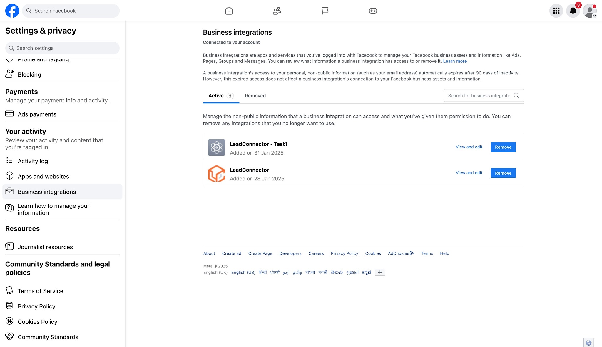
Enable any missing permissions via Facebook’s settings to restore full functionality.
Fixing Instagram Connection and Messaging Issues
To ensure Instagram messages sync properly:
- Confirm your Instagram account is connected to your Facebook page.
- Verify message access is enabled and that users have full control.
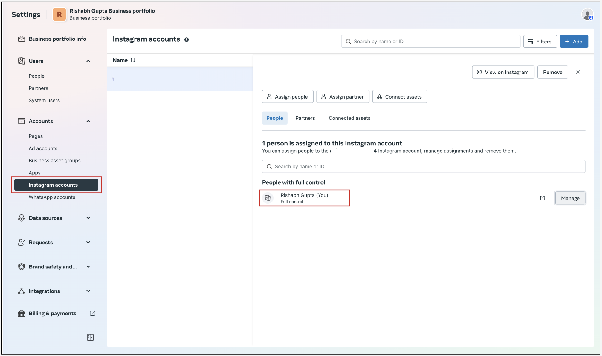
In your CRM, ensure both Instagram and Facebook messaging are enabled in the integration settings.
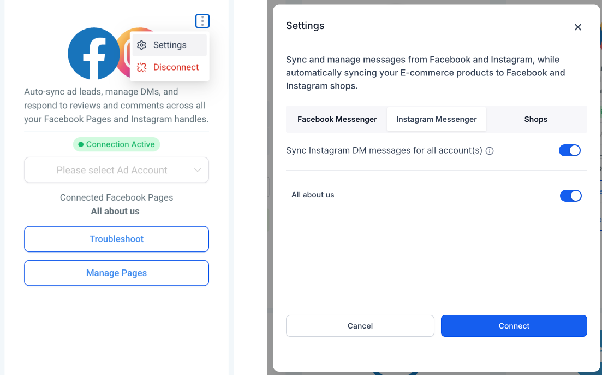
Resolving Lead Sync Problems
If leads aren’t syncing:
- Check that users have full control access in the business portfolio.
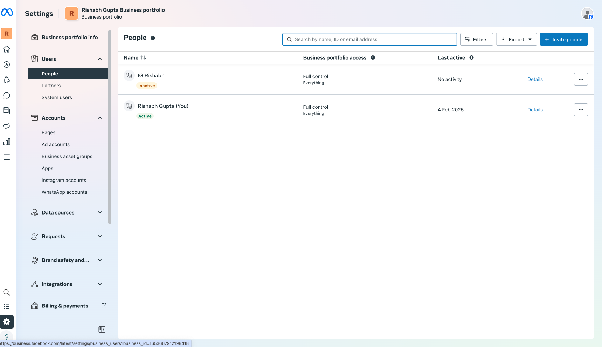
- Confirm user permissions for the connected pages.
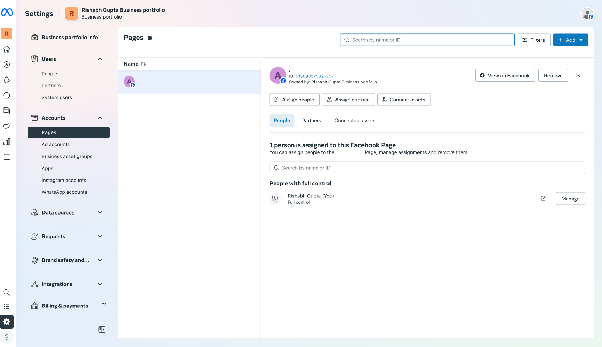
- Verify that your CRM is properly connected under Facebook’s Lead Access settings.