Call Events Not Working for Twilio
Troubleshooting Twilio Call Events in Your CRM
If your CRM is not logging or triggering automations for inbound and outbound calls through Twilio, the issue is often related to incorrect webhook configuration in your Twilio account. This guide will help you locate the correct subaccount in Twilio and verify the webhook settings.
Prerequisites
Before you begin, ensure you have:
- Admin access to your CRM instance.
- Login credentials for your Twilio account.
- The Account SID for the specific location you are troubleshooting, which can be found in your CRM's settings.
Step 1: Locate the Twilio Account SID in Your CRM
First, you need to find the unique Twilio Account SID associated with the location where calls are not working. Navigate to the phone system settings within your CRM, typically under a section for your telephony provider.
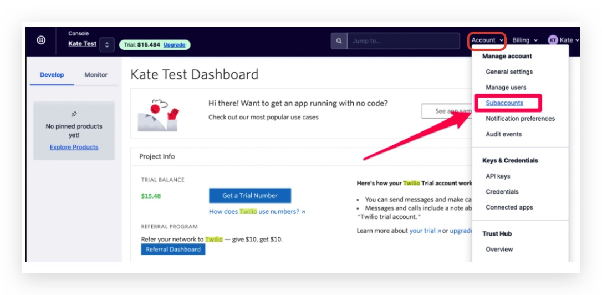
Copy the Account SID for the relevant location. You will use this to find the correct account in Twilio.
Step 2: Find the Correct Subaccount in Twilio
Log in to your Twilio console. If you manage many subaccounts, use the search function to find the one that matches the Account SID you copied from the CRM.
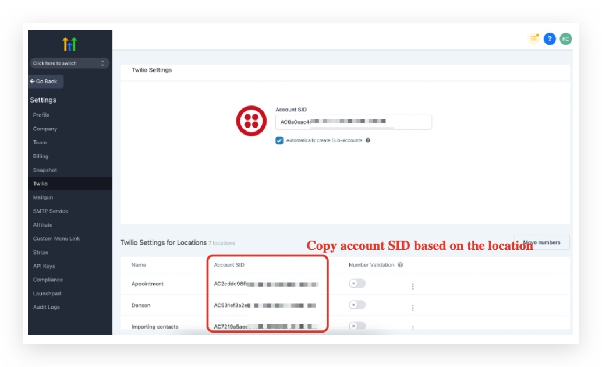
Paste the Account SID into the search field and select the matching subaccount from the results.
Step 3: Access the Subaccount Details
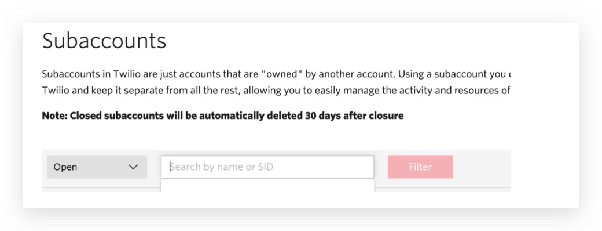
Click on the subaccount to enter its dashboard. You should see the account details and configuration options.
Step 4: Check for Configuration Warnings
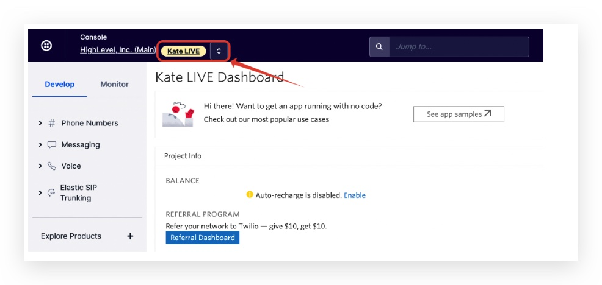
Once inside the subaccount, look for any warning messages or notifications, often displayed in an orange banner, that might indicate a problem with the webhook setup.
Step 5: Review Call Logs for Errors
To investigate further, navigate to the Monitor section in the Twilio console, then select Logs and choose Calls. This will show you the call history and any error messages associated with failed webhook deliveries to your CRM.
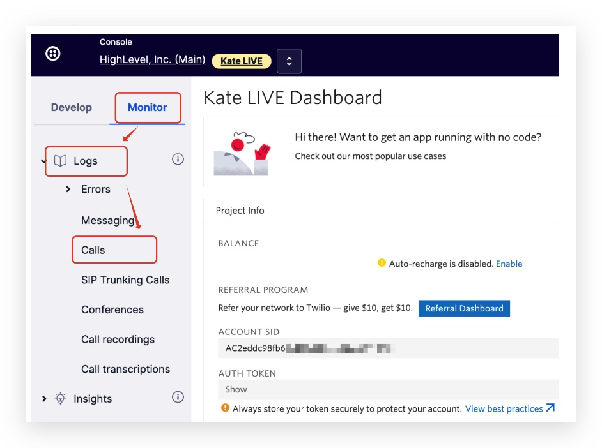
Look for calls that have a status indicating a failure. This log will help you confirm if Twilio is unable to send event data to your CRM's webhook URL.
Next Steps
If you find errors in the logs, the webhook URL in Twilio likely needs to be updated. You must ensure that the webhook URL for voice calls in your Twilio number's configuration points to the correct endpoint provided by your CRM. After updating the webhook, test an inbound or outbound call to see if the event is now logged correctly in your CRM.