Deleting / Resetting a Twilio Number
Deleting or Resetting a Twilio Number
This guide explains how to remove a Twilio phone number from your CRM or reset its configuration. Resetting is useful if you need to clear the number's webhook settings without permanently losing it from your Twilio account.
Before You Begin
Ensure you have administrative access to your CRM's phone system settings and the associated Twilio sub-account.
Navigate to Phone Number Settings
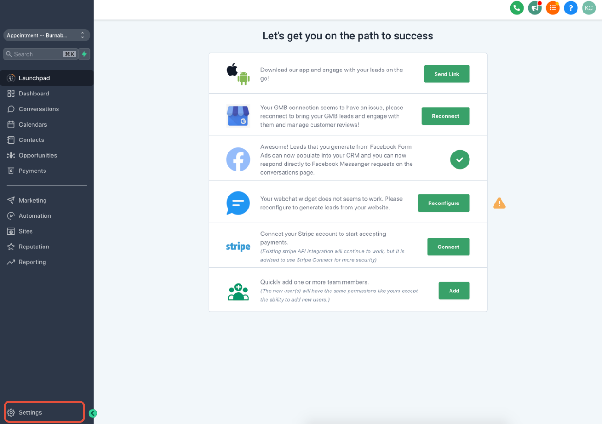
First, access the settings area for your connected phone system. From the main dashboard, locate and select the Settings option.
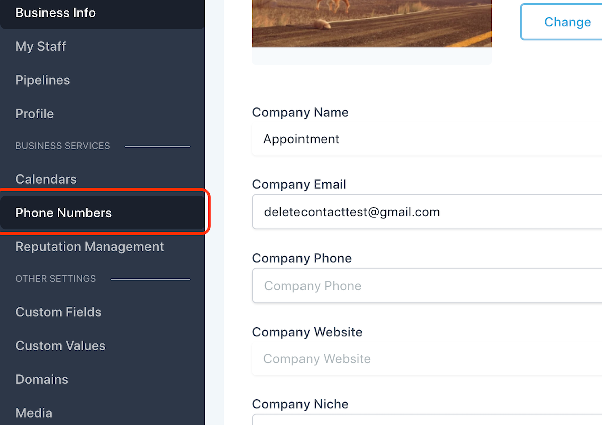
Within the settings menu, find and click on the section for managing your Phone Numbers.
Delete the Phone Number
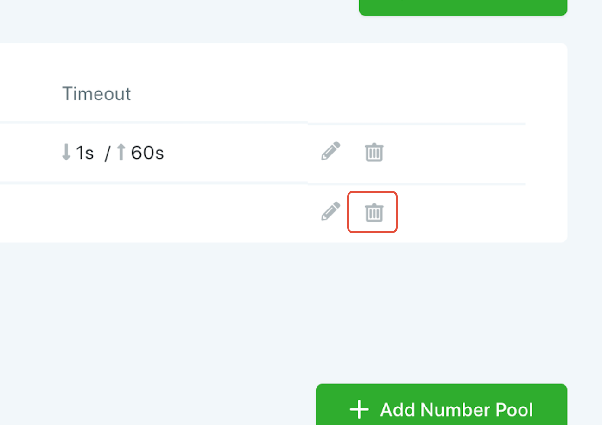
You will see a list of your active phone numbers. Find the specific Twilio number you wish to remove or reset. Next to the number, click the delete or trash icon.
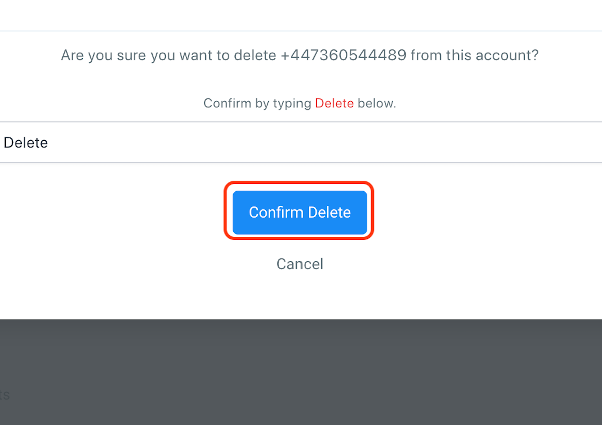
A confirmation dialog will appear. To proceed with removal, type the word "Delete" into the text field and then click the Confirm Delete button.
Choose to Reset or Release the Number
After confirming the delete action, a second prompt will ask what you want to do with the number in your Twilio account. You have two options:
- To Reset the Number (Keep it in Twilio): If you plan to re-add the number to your CRM to reset its webhooks, select No. This action removes the number from the CRM but keeps it available in your Twilio sub-account.
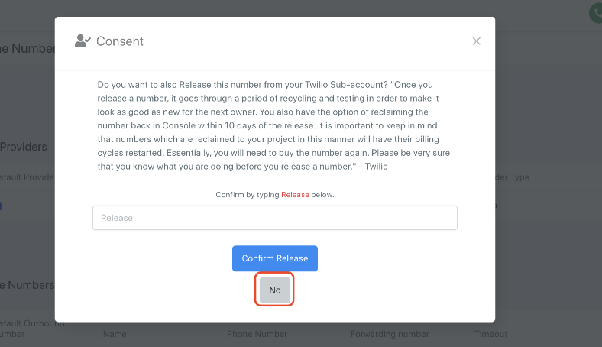
- To Permanently Release the Number: If you want to completely remove the number from your Twilio account, type the word "Release" and click Confirm Release. This action is irreversible and the number will be lost.
Re-adding a Reset Number
If you selected "No" to keep the number in Twilio, you can now add it back to your CRM. This process will reset the number's webhook configurations. From the phone numbers settings page, click the Add button to search for and re-provision your Twilio number.
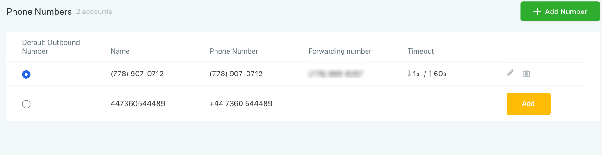
After successfully re-adding the number, its settings will be fresh, and you can configure it as needed for your workflows.