Add CRM's Chat Widget to Your Duda Website
Copy the embed code from Sites > Chat Widget > Get Code
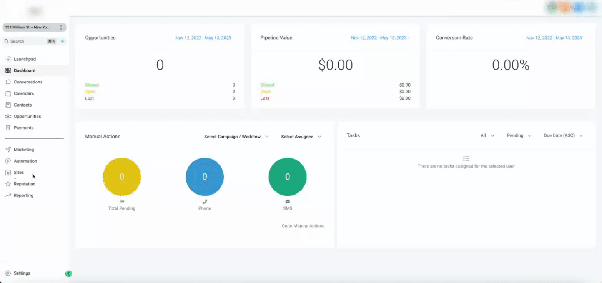
Here is a step-by-step guide on adding a custom chat widget to a Duda website using various methods:
Method 1:
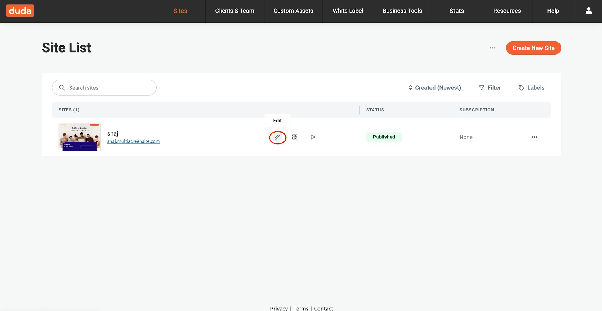
- Log in to your Duda account: Log in to your Duda dashboard and open your website’s editor mode.
- Edit the site: Navigate to the site you want to add the chat widget to and click on the "Edit Site" button.
- In the left column, click on Settings.
- Then, click on Head HTML.
- Paste the embed code: Paste the chat widget's embed code into the editor.
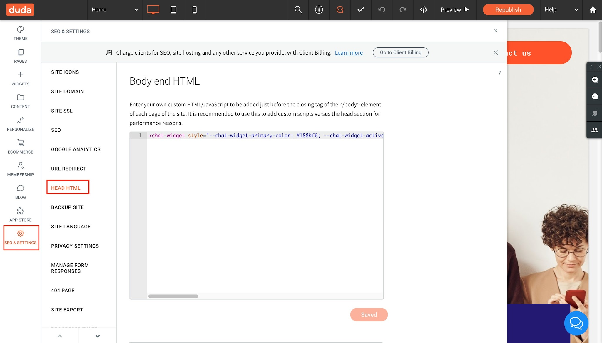
- Save the changes: Click on the "Save" button to save your changes.
- Preview the chat widget: Preview your site to ensure that the widget appears in the correct location and works as expected.
Method 2:
You can also add the chat widget using an HTML element In the editor.
- Add an HTML element: In the editor, drag and drop an HTML element onto the page where you want the chat widget to appear.
- Open the HTML editor: Double-click on the HTML element you just added to open the HTML editor.
- Paste the embed code: Paste the embed code for your chat widget into the HTML editor.
- Save the changes: Click on the "Save" button to save your changes.