Add CRM's Chat Widget to Your Squarespace Website
Copy the embed code from Sites > Chat Widget > Get Code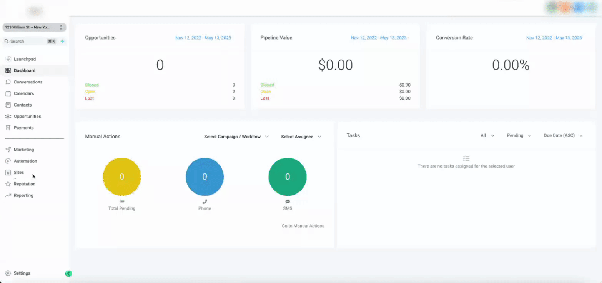
Below are step-by-step instructions for integrating a custom chat widget into a Squarespace website using various methods.
Method 1: Add a custom chat widget using Code Injection
- Obtain code for the Chat widget as shown above.
- Log in to your Squarespace account and navigate to the website to which you want to add the chat widget.
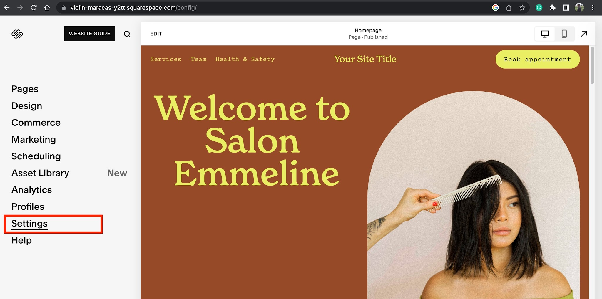
- Click on "Settings" in the main menu.
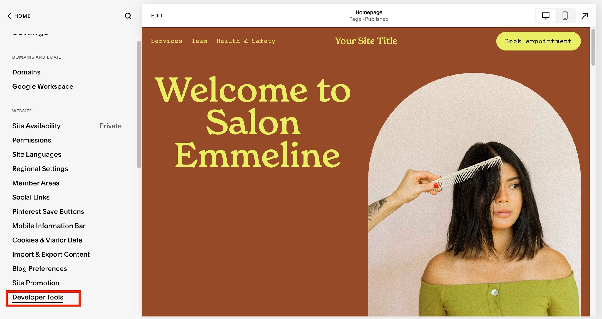
- Select "Developer Tools" in the "Website" section.
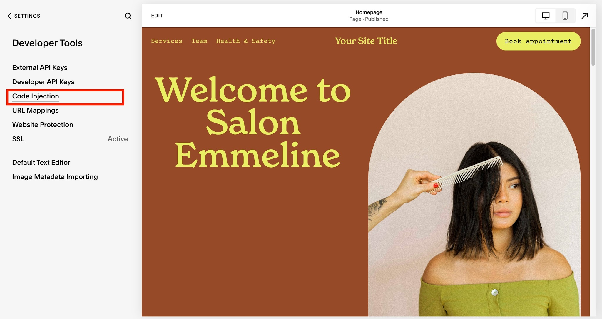
- Click on "Code Injection"
- Paste the chat widget code in the "Header" or "Footer" fields.
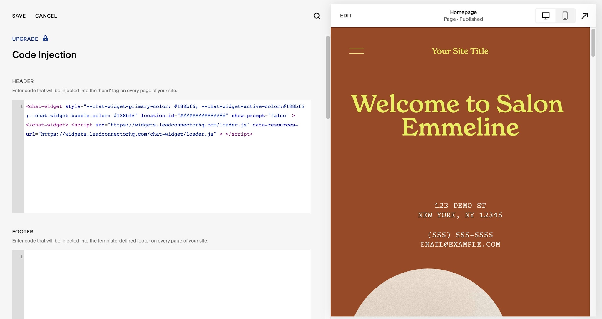
- Click on "Save" to save the changes.
- Preview your website to make sure the chat widget appears correctly.
Method 2: Add a custom chat widget using an Embed Block
- Log in to your Squarespace account and navigate to the page where you want to add the chat widget.
- Click on the page editor and select the section where you want to add the chat widget.
- Click on the plus icon to add a new content block and select "Embed" from the drop-down menu.
- Paste the chat widget code in the "Code Snippet" field.
- Click on "Apply" to apply the changes.
- Preview your website to make sure the chat widget appears correctly.