Add CRM's Chat Widget to Your Wix Website
Copy the embed code from Sites > Chat Widget > Get Code
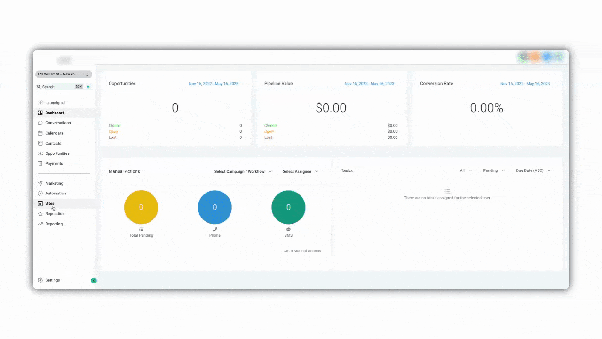
Here’s a step-by-step guide on various methods to integrate a custom chat widget into a Wix website:
Method 1:
Log in to the Wix account and navigate to the website's dashboard.
Click "Settings" in the left menu, then select "Custom Code" under the "Advanced" tab.
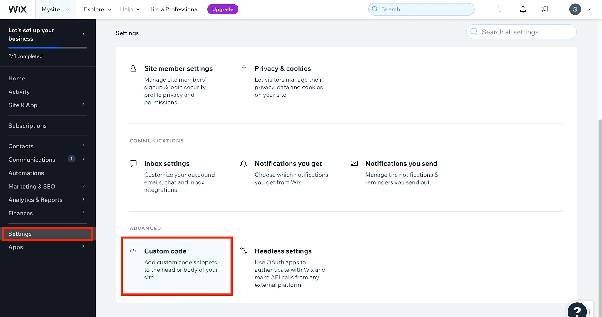
Click "Add Custom Code" in the section.
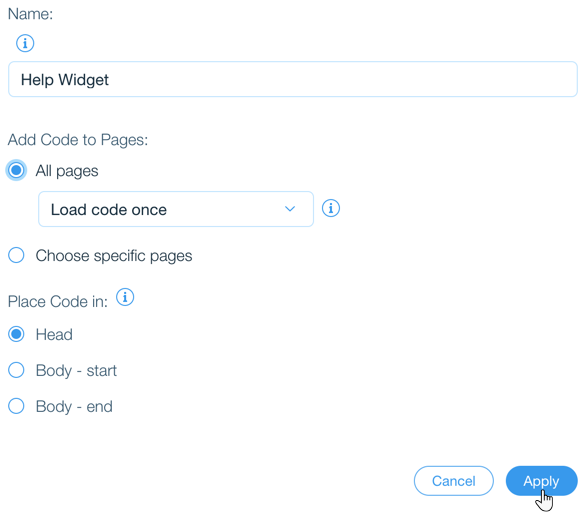
Paste the code snippet in "Code Settings" within the pop-up window.
Configure options:
- Name: Enter a name for your code
- Add Code to Pages: Choose "All Pages" and select "Load code once"
- Place Code In: Choose "Head"
Click "Apply" to save changes.
The widget will now appear on every page of your Wix site.
Method 2:
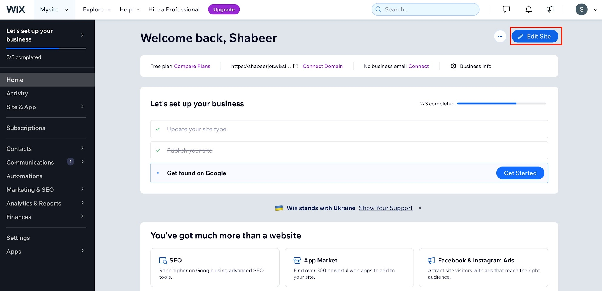
- Sign in to the Wix account and launch Wix Editor. Click Edit Site from the Dashboard.
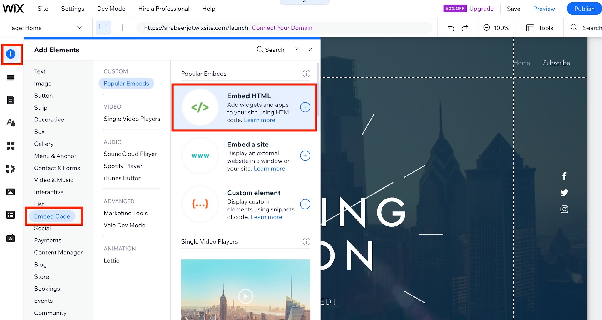
- Click the plus (+) icon in the left-side menu to access "Add Elements."
- Choose "Embed" from the left sidebar menu.
- Select "Embed HTML" under "Popular Embeds".
- Click on "Code" in the new HTML box that appears.
- Paste the widget code into the text field and press "Update."
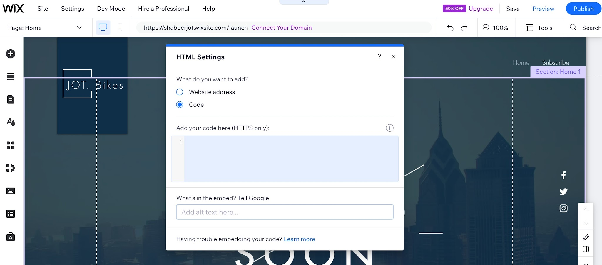
- Close the "HTML Settings" box.
- The widget will now be visible in the HTML box on your page.