Hosted Video Player For Funnels
Hosted Video Player For Funnels
Now upload and stream videos with an all new video Player
- Better interface to upload, change and remove videos.
- Play videos in different qualities (480P, 720P, 1080P and Auto).
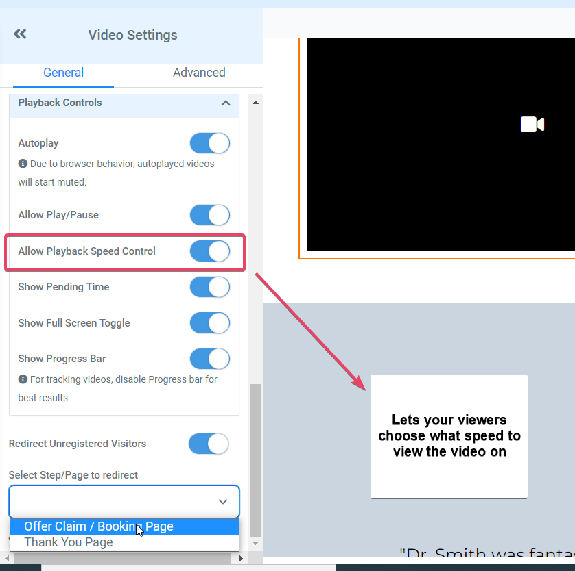
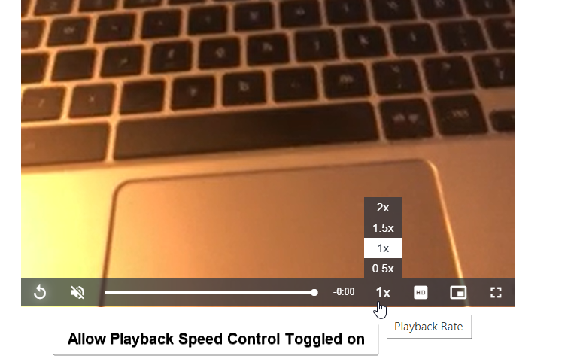
- Change Playback speed (0.5x 0.75x, 1x, 2x)
- Play video as a PiP (Picture in Picture)
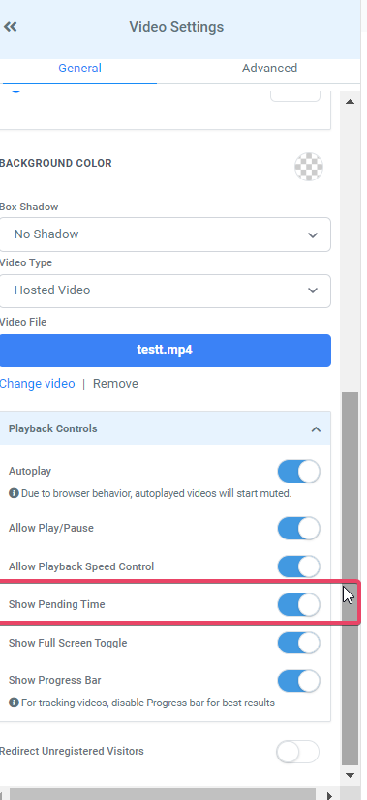
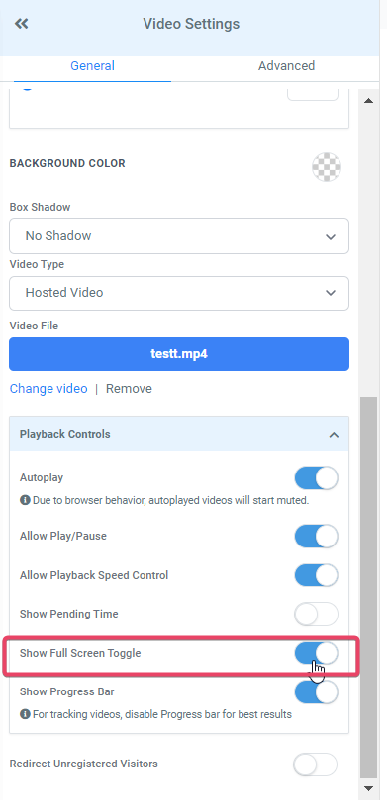
- Show/Hide Playback controls, Full screen options and pending time.
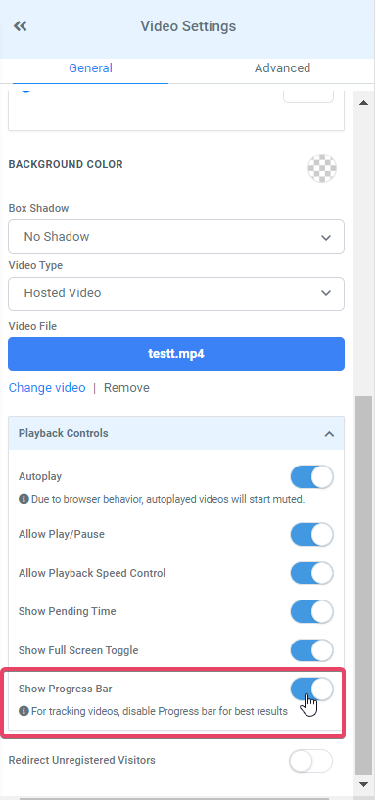
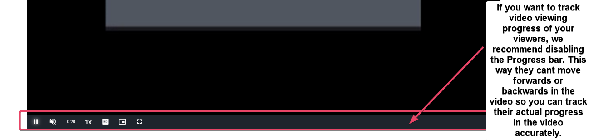
- Show/Hide progress bar and disable seeking in videos.
- Enable/Disable Autoplay
- Supports videos up to 4 GB on all major formats.
- Supported in all major browsers.
How to use the Hosted Video feature?
To make use of the Hosted Video feature, add a video Element to your funnel:
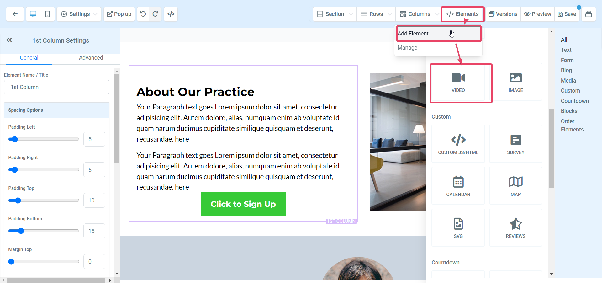
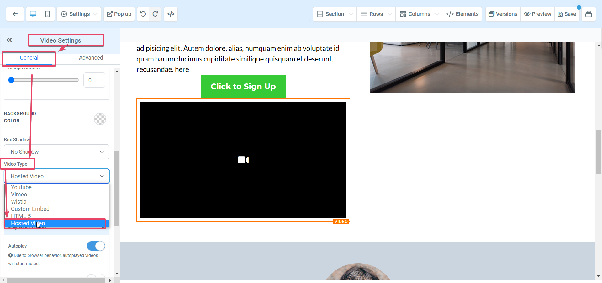
Click on the Video Element, Go to Video Settings on the left and scroll down to Video Type > Choose Hosted Video:
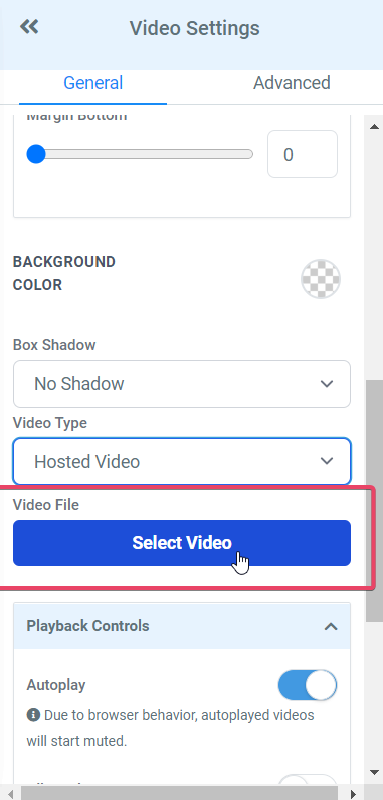
Then click on Select Video to be taken to your Media Library:
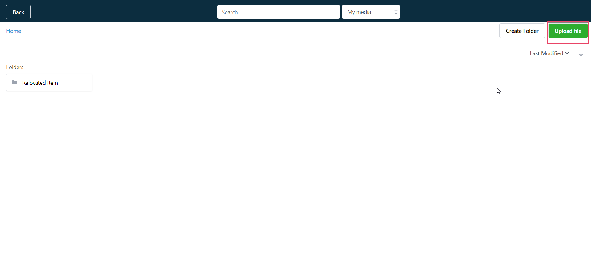
If you do not already have the video that you need to host, Please Upload it:
Please Note:
The video can be in any of the mainstream Video formats as long as it is under 4GB.
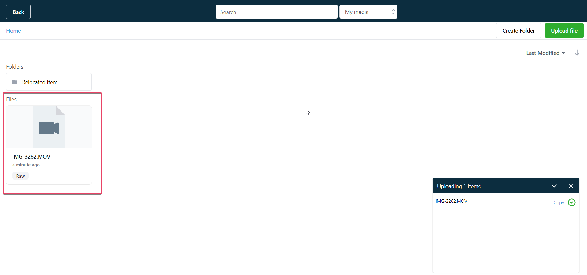
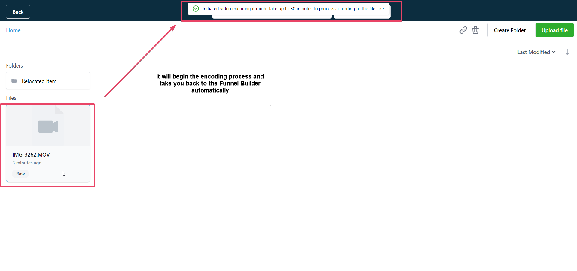
Once your video is done uploading, you can double click on the Video file to begin Encoding it:
Please Note
Users can retry encoding by reselecting the video if the video encoding is in a failed state. All videos that are in processing for more than a day will automatically get marked as failed.
It is also required so that your viewers can see an option to choose between multiple video qualities. Raw videos can only play in one quality.
What do each of the toggles in the Hosted Video Element settings > Playback Controls do?
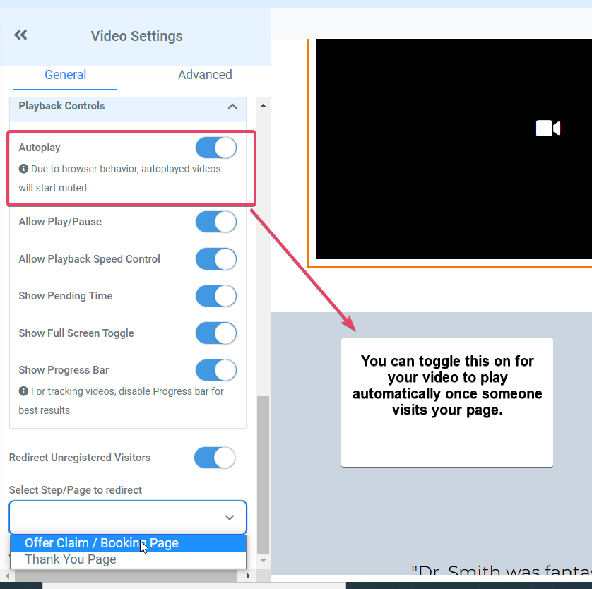
Autoplay:
Please Note:
According to autoplay regulations autoplaying videos on IOS, Safari, Chrome, Android, Firefox, and Edge must start out muted. This policy is controlled by the browser manufacturers, and all video hosting services must adhere to it.
Chrome will rely on your viewer’s Media Engagement Index to decide if it will autoplay a video with sound or not. Chrome calculates a media engagement score which is highest on sites where media is played on a regular basis. When it is high enough, media playback is allowed to autoplay with sound on desktop only.
Non auto-played videos start unmuted.
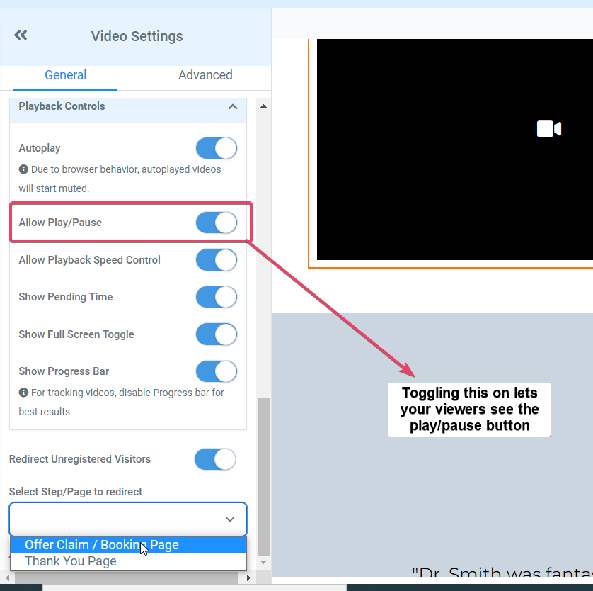
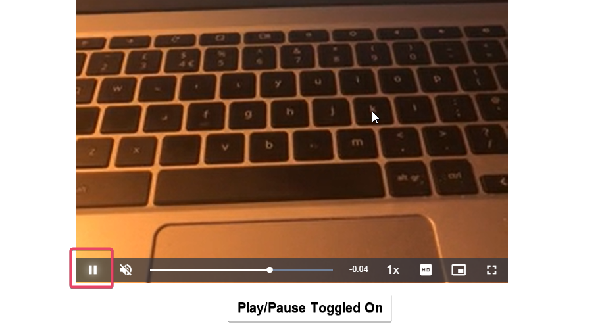
Allow Play/Pause:

Allow Playback Speed Control:
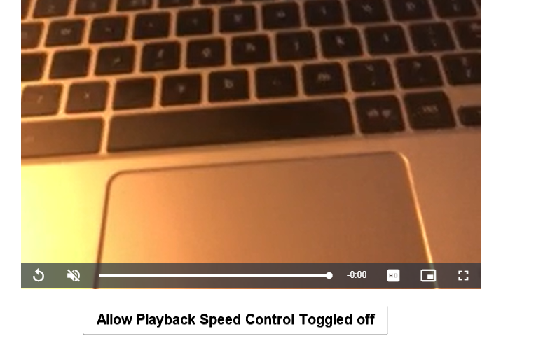
Show Pending Time:


Show Full Screen Toggle:


Show Progress Bar:

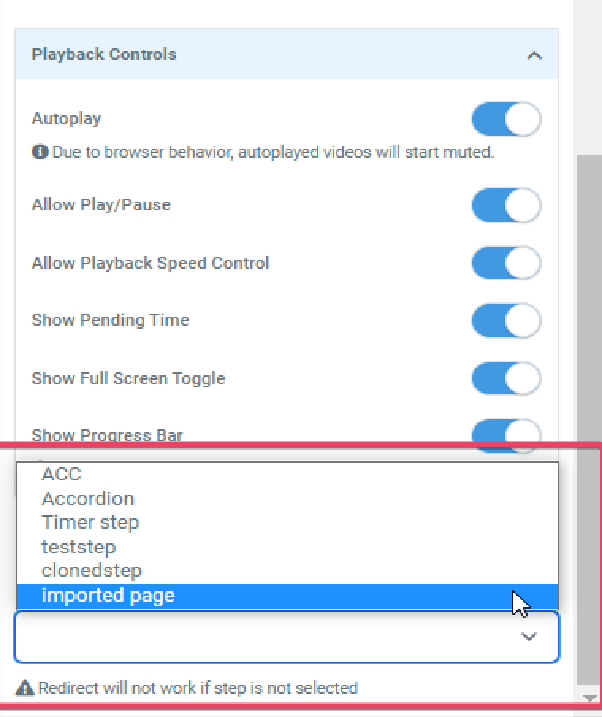
Redirect Unregistered Visitors:
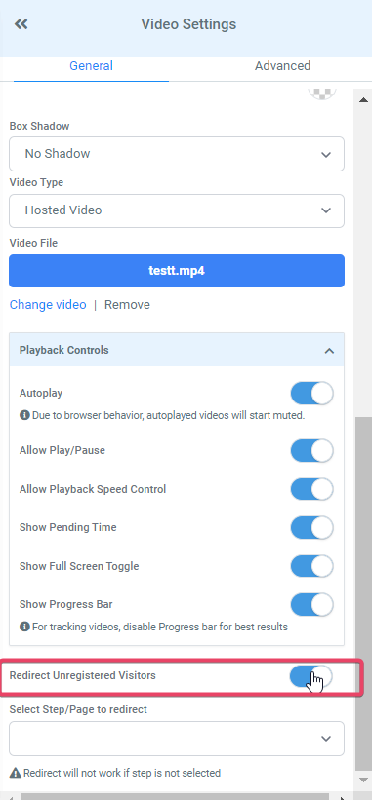
When visitors directly land on your website's video page via a URL, they might skip filling out their name and information on an Opt-in form. Consequently, if you aim to monitor a visitor's video progress but they've arrived at the video page directly, your tracking system won't capture their details, hindering accurate stats generation for named contacts. As a result, the workflow might end up registering empty leads.
To circumvent this issue, consider employing the "Redirect Unregistered Visitors" toggle. This feature redirects such visitors to a designated page housing an Opt-In Form. After completing the form, they are seamlessly redirected back to the video. Notably, this redirection selectively targets visitors lacking any associated cookies, which typically store user information.
However, bear in mind that if a visitor blocks cookies on their browser, this redirect mechanism may prove ineffective. Therefore, it's essential to specify the desired step or page for redirection.