Import Existing Twilio Numbers
Import Existing Twilio Numbers
This guide explains how to import phone numbers you already own from Twilio into your CRM. You will need to locate specific account identifiers within the CRM to authorize the transfer in your Twilio console.
Access Your Agency Account Settings
To begin, you must access the settings for your main agency account within the CRM.
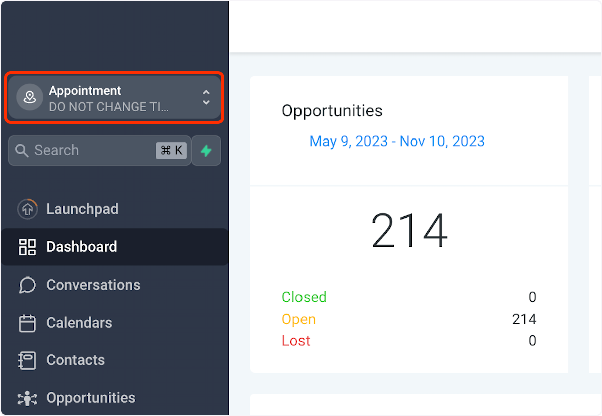
- From your CRM dashboard, locate and click on your sub-account name, typically found in the top-left corner of the screen.
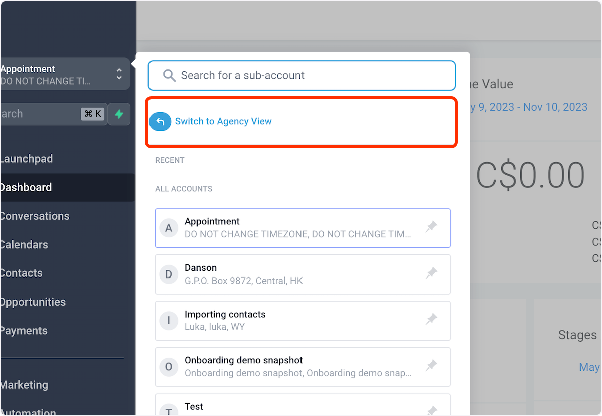
- From the menu that appears, select the option to switch to the Agency View. This will give you access to settings that apply across all sub-accounts.
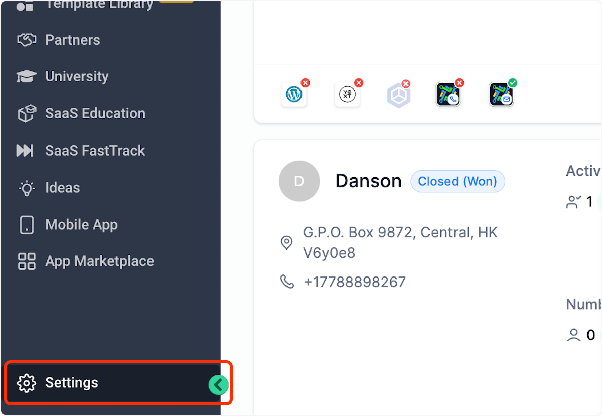
- Once in the Agency View, navigate to the main Settings area of the CRM.
Locate Your Twilio Account Credentials
Within the settings, you will find the section for integrating phone services.
- Click on the Phone Integration section to view your telephony settings.
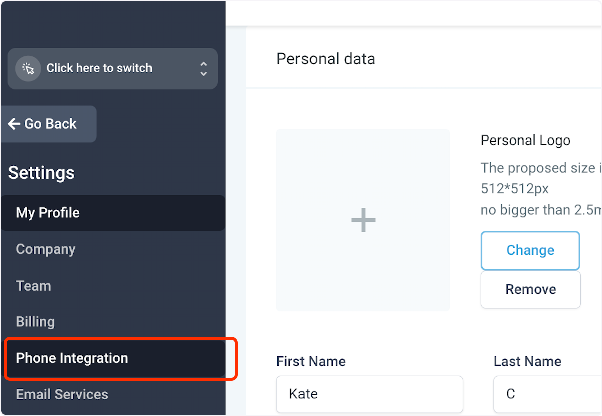
- Here you will see your master Twilio Account SID. This is the primary identifier for your Twilio account within the CRM. Make a note of this SID, as you may need it for the transfer process in Twilio.
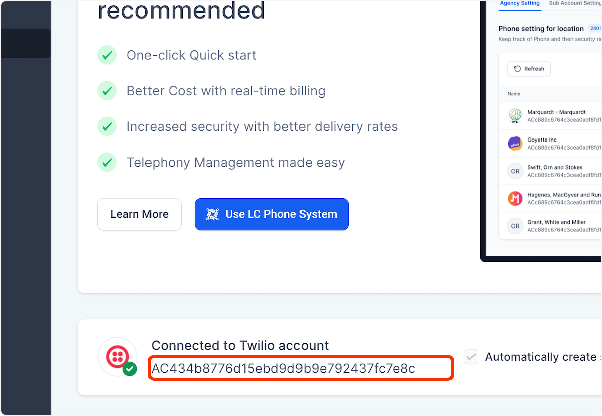
Find the Destination Sub-Account SID
Next, you need to find the Account SID for the specific sub-account where you want to import the phone number.
- Within the Phone Integration settings, look for and click on the option for Sub Account Settings.
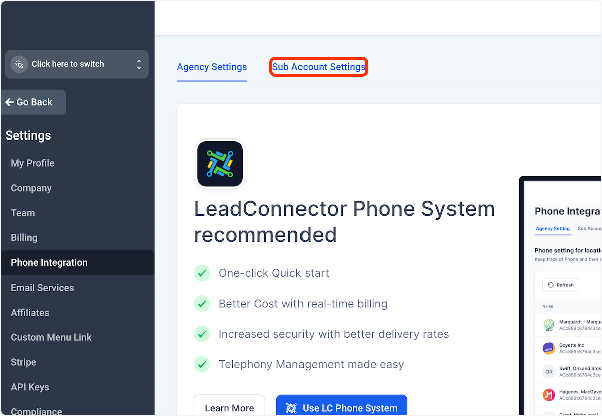
- A list of your sub-accounts will appear. Find the specific sub-account you are importing the number to and click the pencil (edit) icon next to it.
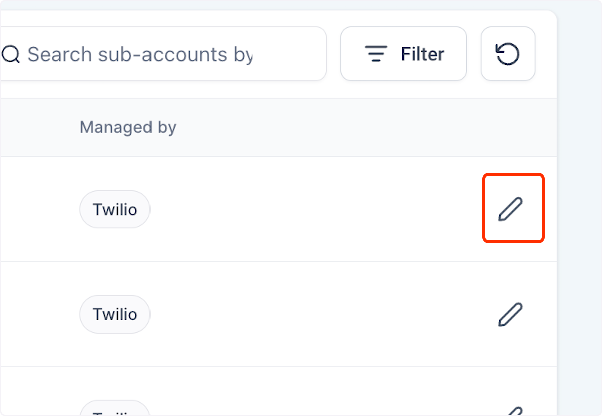
- The editing panel will display the Twilio Account SID for that sub-account. This is the "gaining" Account SID you will use in your Twilio console to initiate the number transfer. You can update the credentials here if needed.
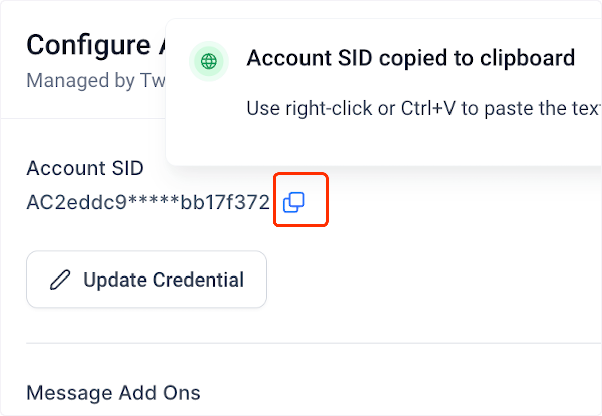
Once you have collected the necessary Account SIDs from the CRM, you can proceed to your Twilio console to complete the phone number porting process using these identifiers.