Incoming or inbound SMS message showing as calls / not showing at all
Troubleshooting Inbound SMS Issues in CRM
If inbound SMS messages are appearing as call logs or not showing up at all in your CRM, the issue is typically related to the configuration of your phone number in Twilio. This guide will help you diagnose and fix the webhook settings. Important: If your location uses the CRM's branded phone system, please contact support directly instead of following these steps.
Prerequisites
Before you begin, ensure you have:
- Administrator access to your CRM account.
- Login credentials for your Twilio account.
- The phone number experiencing issues readily available.
Step 1: Locate the Correct Twilio Subaccount
First, you need to find the specific Twilio subaccount associated with the CRM location having issues.
- Log in to your CRM agency account.
- Navigate to the settings for the specific location.
- Find the section for your phone/Twilio integration and copy the Account SID listed there.
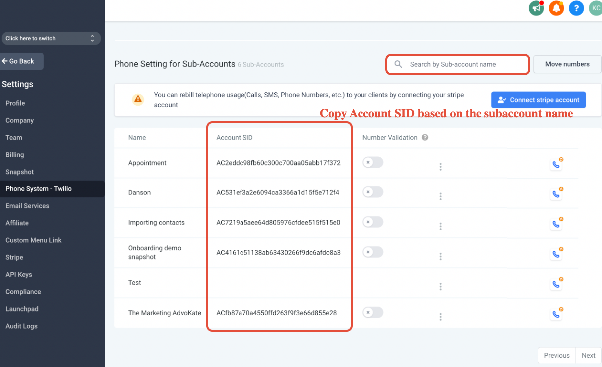
Now, log in to your Twilio console.
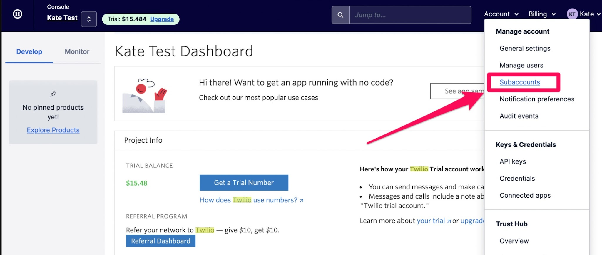
- In the top right, click your Account menu and select Subaccounts.
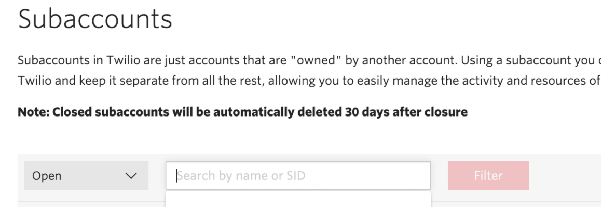
- Use the search function and paste the copied Account SID to find and select the correct subaccount.
Step 2: Check and Configure the Phone Number
Within the correct Twilio subaccount, you need to verify your number's capabilities and its webhook settings.
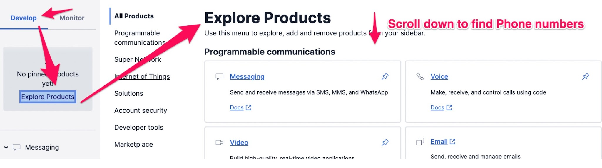
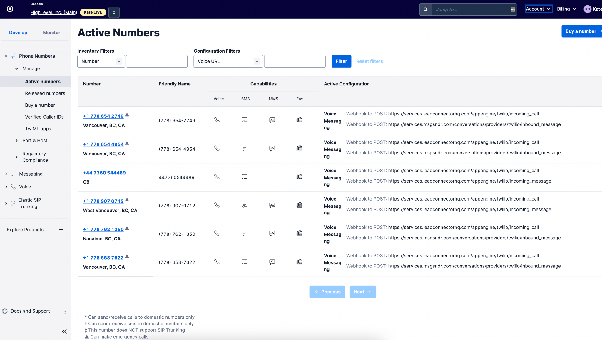
- In the Twilio console left-hand menu, navigate to Phone Numbers > Manage > Active Numbers.
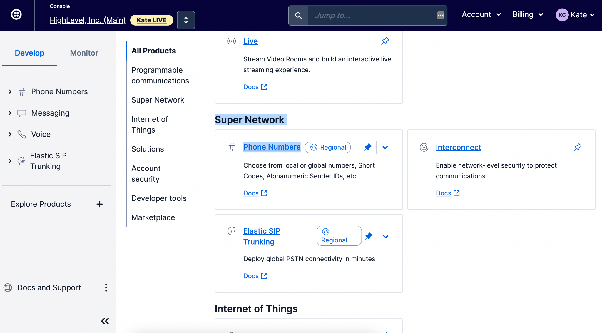
- Find and click on the problematic phone number to open its configuration.
- First, check that the number is SMS (and MMS, if needed) capable. Look for the relevant icons or labels in the number's overview.
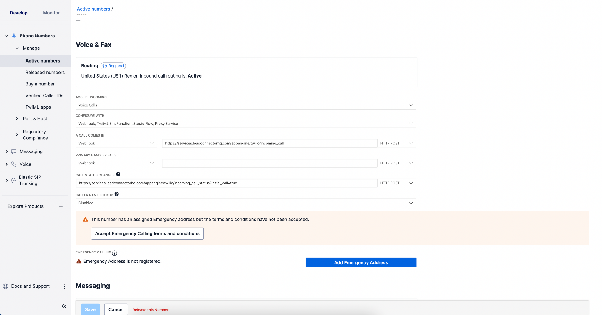
- Scroll down to the Messaging section. For "A MESSAGE COMES IN", the webhook should be configured to point to your CRM's SMS handling endpoint. The correct value is typically provided in your CRM's phone integration settings.
If the webhook is incorrect:
- Select Webhook from the dropdown.
- In the field that appears, paste the correct webhook URL from your CRM.
- Ensure the request method is set to HTTP POST.
- Click Save at the bottom of the page.
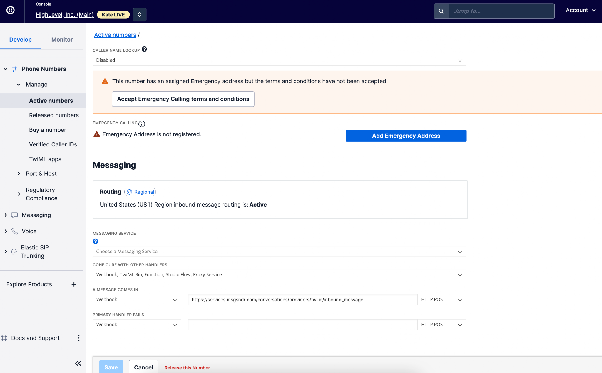
After saving, test by sending an SMS to the number. The message should now appear correctly in the CRM's conversations.
Step 3: Check for Messaging Service Conflicts
If the issue persists, the number might be attached to a Twilio Messaging Service, which can override individual number settings.
- In the same Twilio subaccount, go to Messaging > Services from the left menu.
- Review any active services. If your number is listed in a service's Sender Pool, it may be causing a conflict.
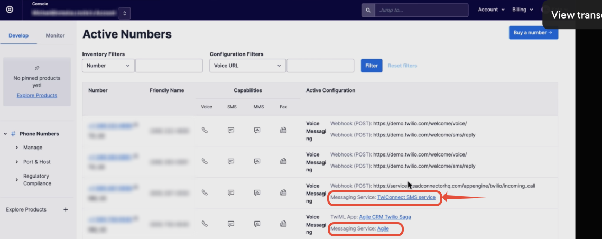
Note: Do not modify Messaging Services if you are using them for A2P 10DLC registration. If you are unsure, contact support. If you are not using A2P services, you can try removing the number from the Sender Pool.
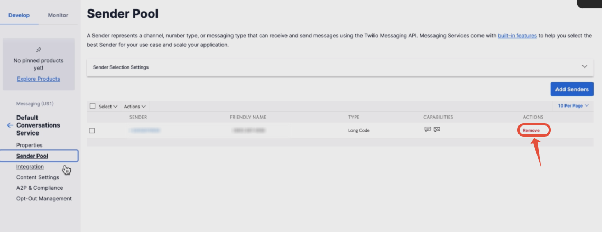
- Click into the relevant Messaging Service.
- Go to the Sender Pool section.
- Locate your phone number and remove it from the pool.
Step 4: Investigate Message Logs
If messages are still not appearing, use Twilio's logs to see if they are being received.
- In Twilio, go to Monitor > Logs > Messaging.
- Use the filters to search for messages To your Twilio number. Enter the sender's number in a plain format (e.g., 5551234567).

- Examine the logs. Click on a message's date for more details.
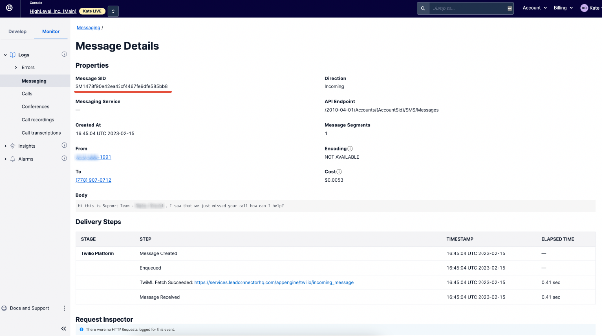
- If the status is delivered to Twilio but not in CRM, the webhook configuration is likely still incorrect.
- If the status shows a different error, note the Message SID. You may need to contact Twilio support with this SID for further investigation.
Hovering over a log entry will often preview the message content, helping you confirm the message Twilio received.